> For the complete documentation index, see [llms.txt](https://docs.booldesk.com/llms.txt). Markdown versions of documentation pages are available by appending `.md` to page URLs; this page is available as [Markdown](https://docs.booldesk.com/how-to-use-modules/system-management-module/connect-to-a-remote-computers-powershell-and-command-prompt.md).
# Connect to a remote computer's Powershell and Command Prompt
**Overview**
The Live Connection feature provides a suite of remote management tools that allow you to interact directly with a managed computer's operating system in real-time. Without needing to initiate a full remote desktop session, you can run PowerShell scripts, execute Command Prompt (CMD) commands, and browse system files. This is ideal for quick troubleshooting tasks, such as checking network configurations or verifying installed services.
#### **Step-by-Step Guide**
**1. Navigate to the Computer Details**
First, access the specific device you need to manage.
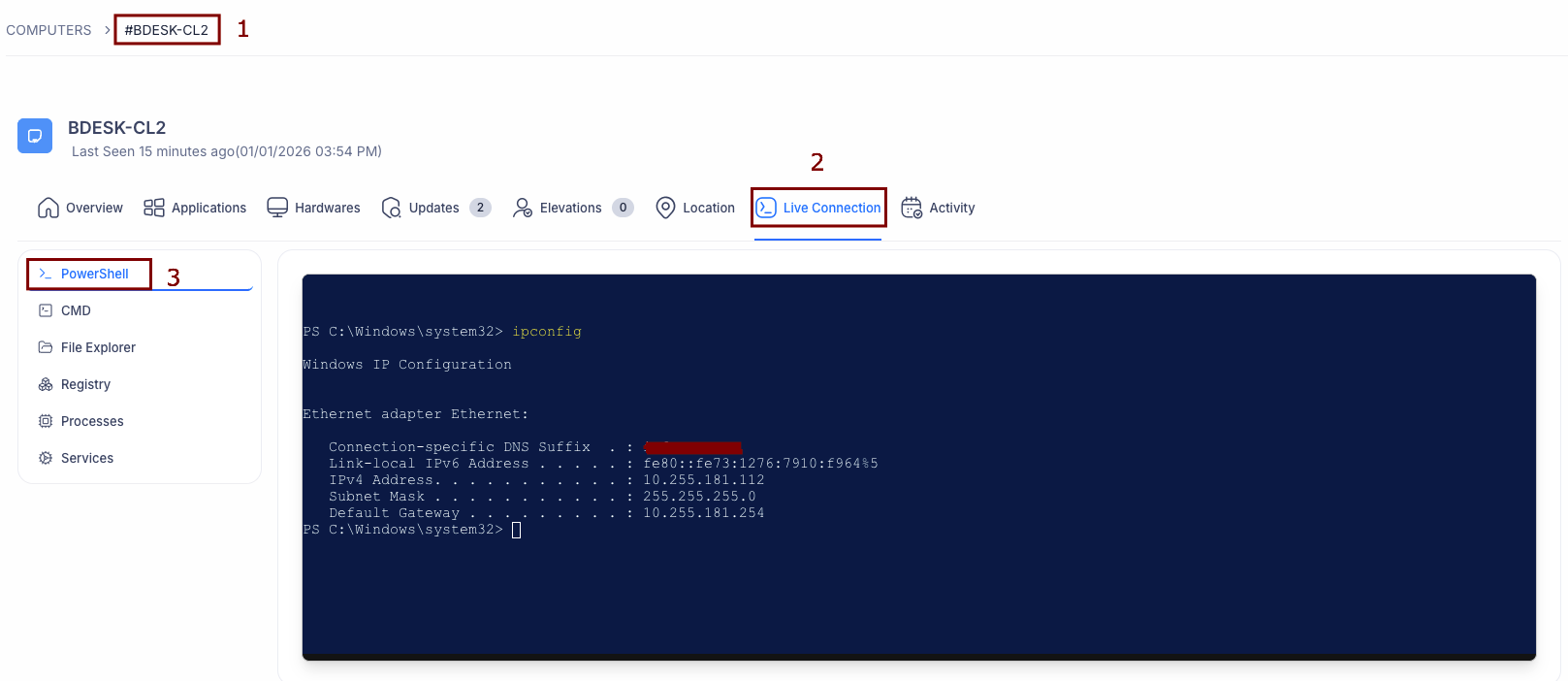
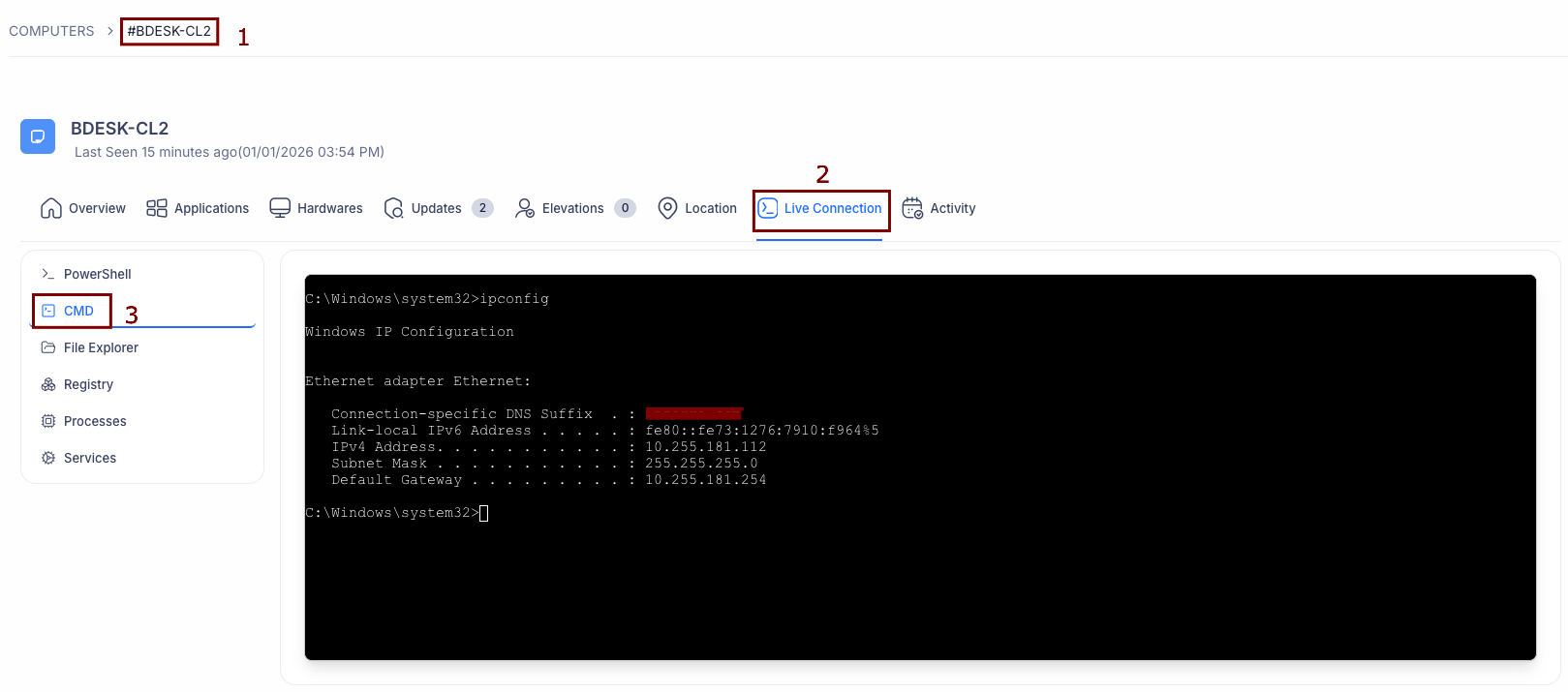
* From the computer list, click on the name of the device (e.g., `#BDESK-CL2`) (1) to open its details page.
**2. Access the Live Connection Tab**
* Click on the Live Connection tab (2) located in the top navigation bar.
* This will load the remote management interface, connecting you securely to the device.
**3. Select a Management Tool**
The sidebar on the left lists the available tools. You can switch between them instantly:
* **PowerShell:** Click on PowerShell (3) to open a fully functional remote PowerShell terminal.
* You can type standard commands (like `ipconfig`) and view the output immediately in the dark console window on the right.
* **Command Prompt (CMD):** Click on CMD (3) to switch to a standard Windows Command Prompt interface.
* This interface works exactly like a local command prompt, allowing you to run utilities and diagnostic commands.