> For the complete documentation index, see [llms.txt](https://docs.booldesk.com/llms.txt). Markdown versions of documentation pages are available by appending `.md` to page URLs; this page is available as [Markdown](https://docs.booldesk.com/how-to-use-modules/system-management-module/check-the-missing-and-installed-updates.md).
# Check the missing and installed updates
**Overview**
The Updates section allows you to audit the patch status of any managed computer. You can view a list of "Missing" updates that need to be applied to secure the device, as well as a history of "Installed" updates to verify compliance. This helps IT administrators ensure all endpoints are up-to-date with the latest Microsoft security definitions and feature patches.
#### **Step-by-Step Guide**
**1. Navigate to the Computer Details**
First, you need to access the specific device you want to audit.
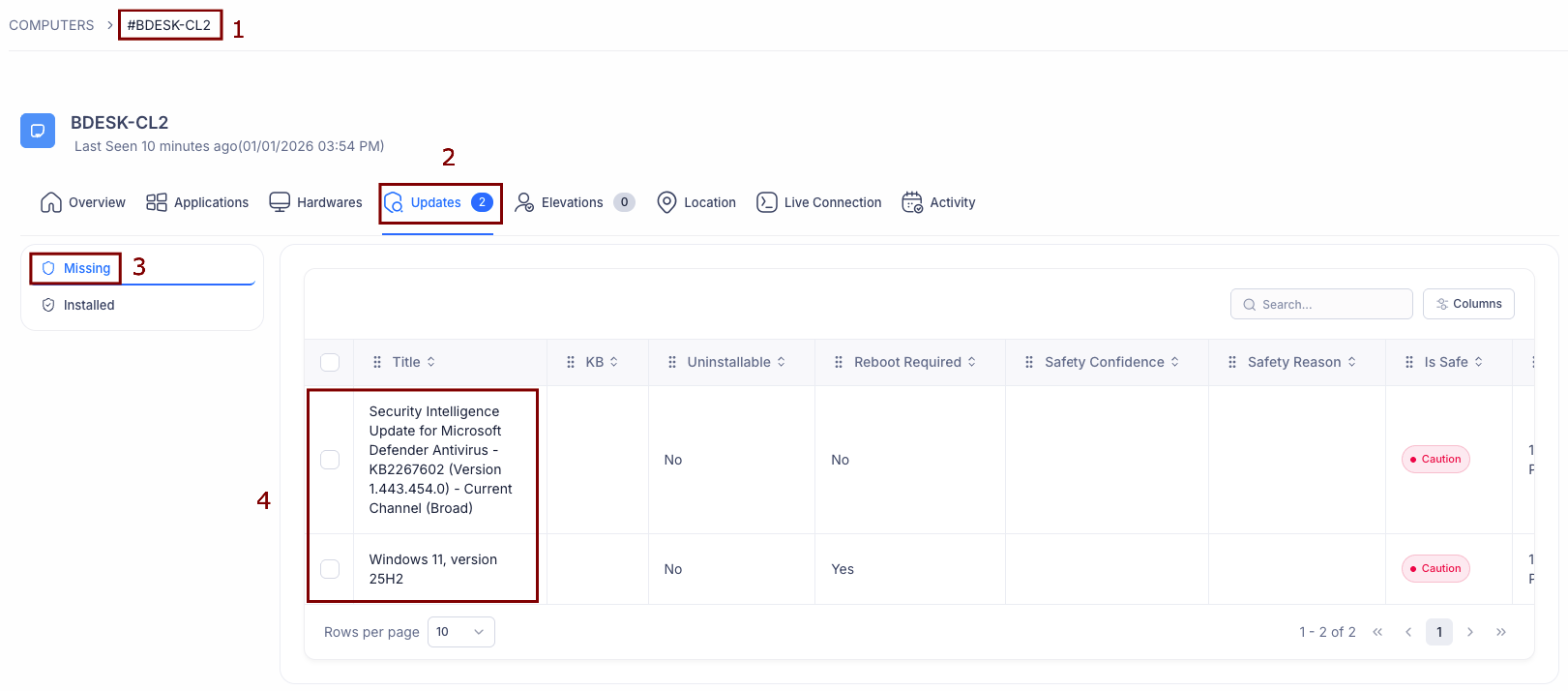
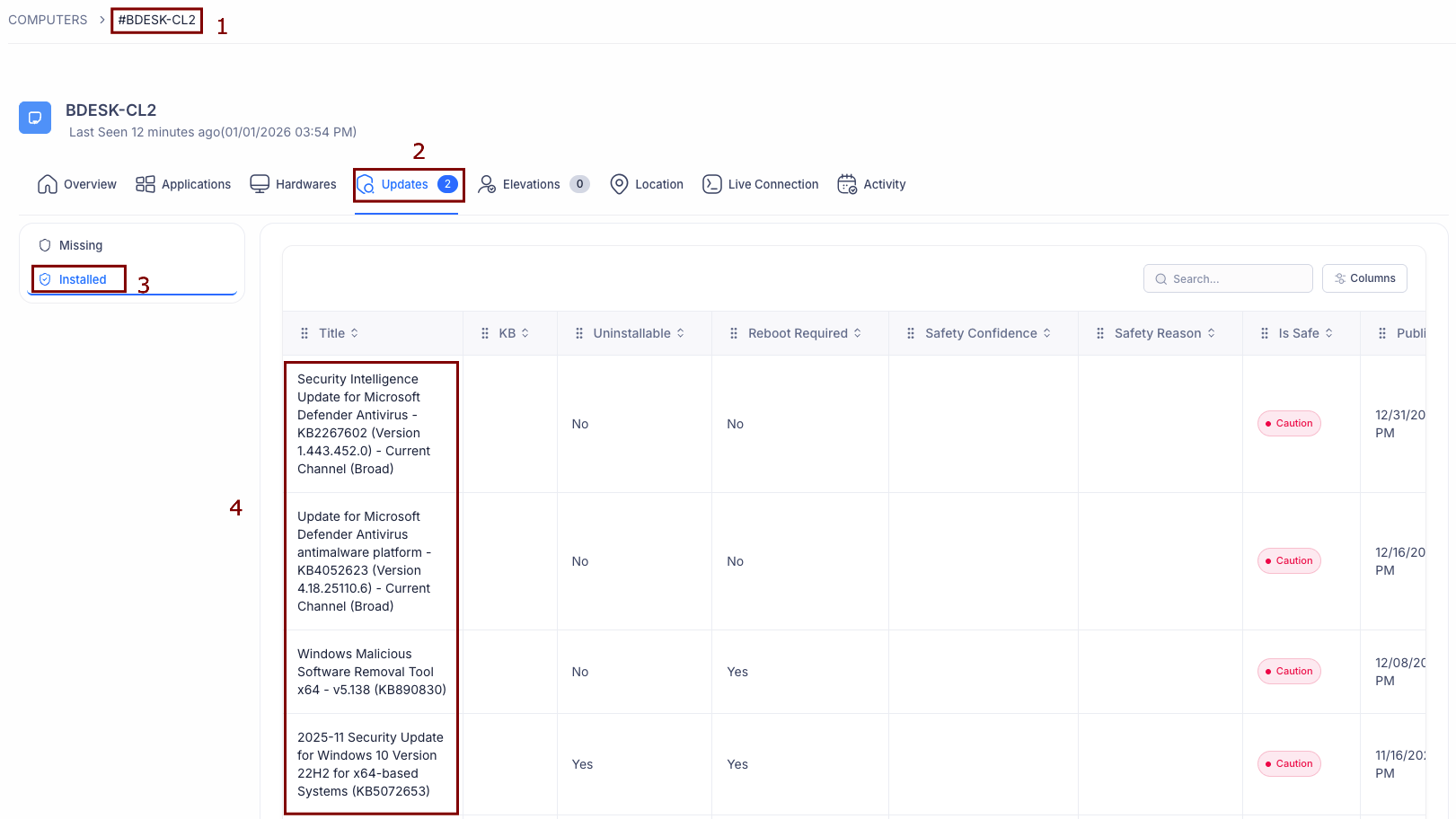
* Go to the Computers list and click on the name of the device (e.g., `#BDESK-CL2`) (1).
* On the device details page, click on the Updates tab (2) located in the top navigation bar.
**2. View Missing Updates**
To see which patches are currently needed:
* Click on the Missing tab (3) on the left sidebar.
* The main list (4) will display all pending updates.
* This list provides critical details such as the update Title (e.g., "Security Intelligence Update"), whether it is Uninstallable, and if a Reboot is Required.
* You can also see a "Safety Confidence" or status tag like "Caution" to help you decide whether to deploy the patch immediately.
**3. View Installed Updates History**
To review the patch history of the device:
* Click on the Installed tab (3) on the left sidebar.
* The list (4) will update to show all patches that have successfully been applied to the machine.
* This view is useful for auditing purposes, allowing you to confirm exactly when specific security patches (like KB numbers) were installed.