> For the complete documentation index, see [llms.txt](https://docs.booldesk.com/llms.txt). Markdown versions of documentation pages are available by appending `.md` to page URLs; this page is available as [Markdown](https://docs.booldesk.com/how-to-configure-settings/general/how-to-create-a-company-profile.md).
# How to create a company profile
**Overview**
Creating a Company entry allows you to group users, tickets, and assets under a specific organization. A key feature is the ability to link email domains to a company. When configured, any new user who signs up or submits a ticket from that email domain (e.g., `@booldesk.com`) will automatically be assigned to the correct company, automating organization and reporting.
#### **Step-by-Step Guide**
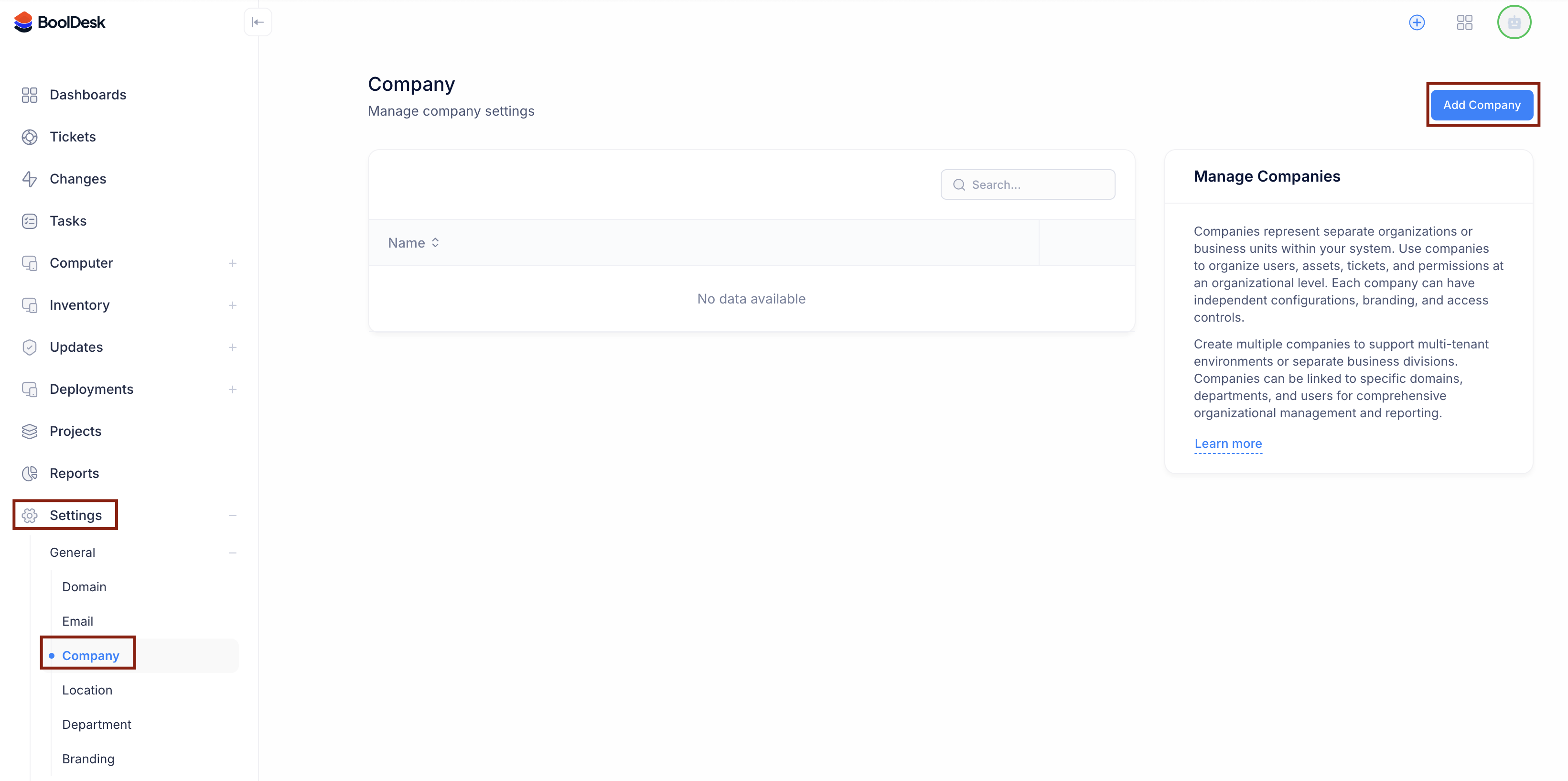
**1. Navigate to Company Settings**
Access the company management section from the general settings.
* From the main menu, go to Settings (1).
* Under the `General` section, click on Company.
* Click the Add Company button in the top right corner.
**2. Configure Company Details**
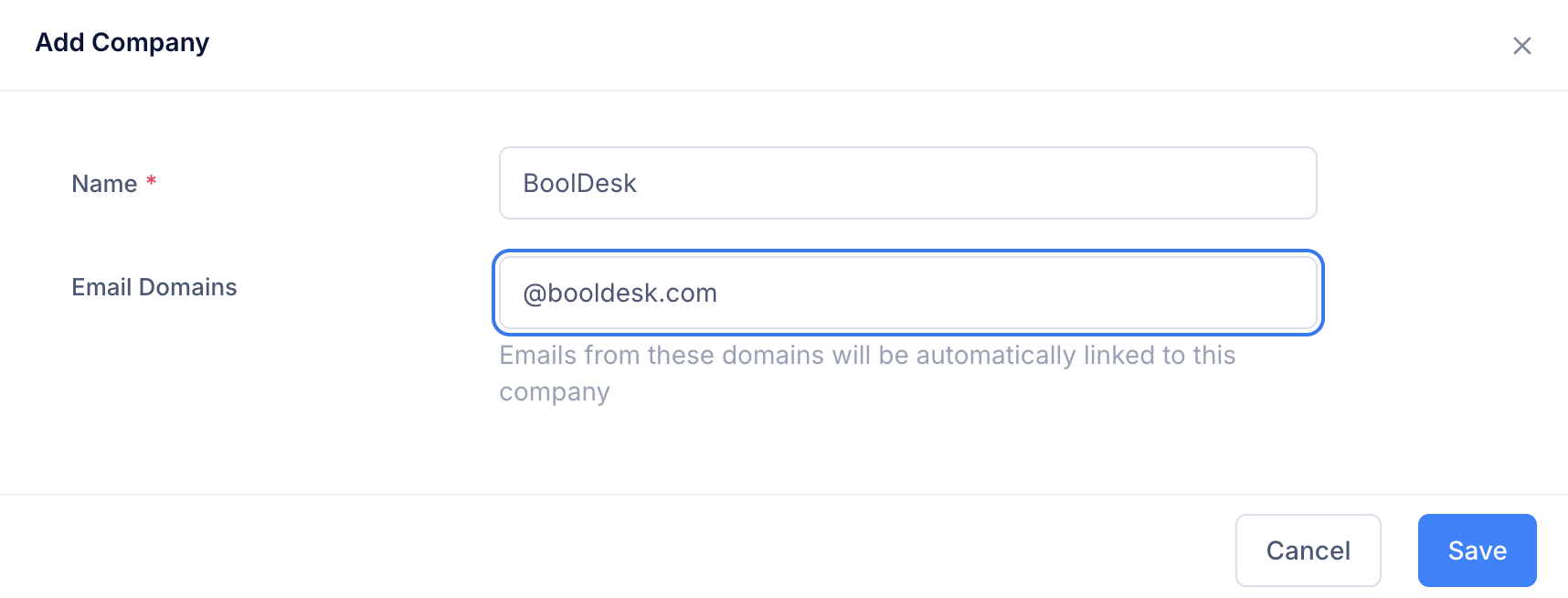
In the "Add Company" window, define the organization's details.
* Name: Enter the official name of the company (e.g., `BoolDesk`).
* Email Domains: Enter the email domain associated with this company (e.g., `@booldesk.com`).
* *Note:* This is a powerful automation feature. BoolDesk will automatically link any user or ticket originating from this domain to this company profile.
* Click Save to create the company record.