> For the complete documentation index, see [llms.txt](https://docs.booldesk.com/llms.txt). Markdown versions of documentation pages are available by appending `.md` to page URLs; this page is available as [Markdown](https://docs.booldesk.com/how-to-configure-settings/general/how-to-configure-microsoft-entra-id-azure-ad-for-booldesk.md).
# How to Configure Microsoft Entra ID (Azure AD) for BoolDesk
**Overview**
To enable secure authentication and email integration (such as IMAP/SMTP) within BoolDesk, you must register an application in your Microsoft Entra ID (formerly Azure AD) portal. This process allows BoolDesk to securely communicate with your Microsoft 365 tenant.
#### **Step-by-Step Guide**
**1. Register a New Application**
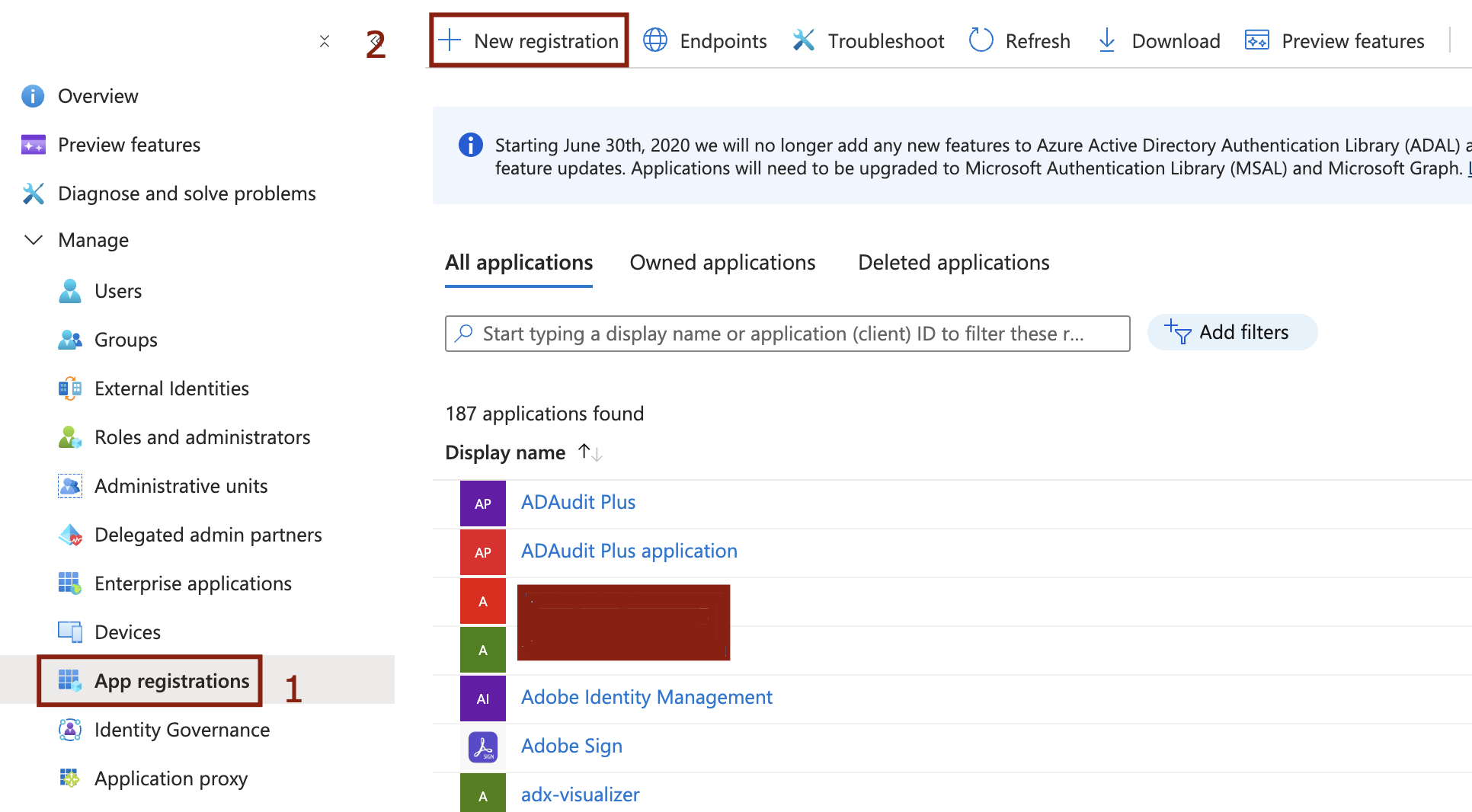
* Log in to the Azure Portal and navigate to App registrations (1).
* Click the + New registration button (2).
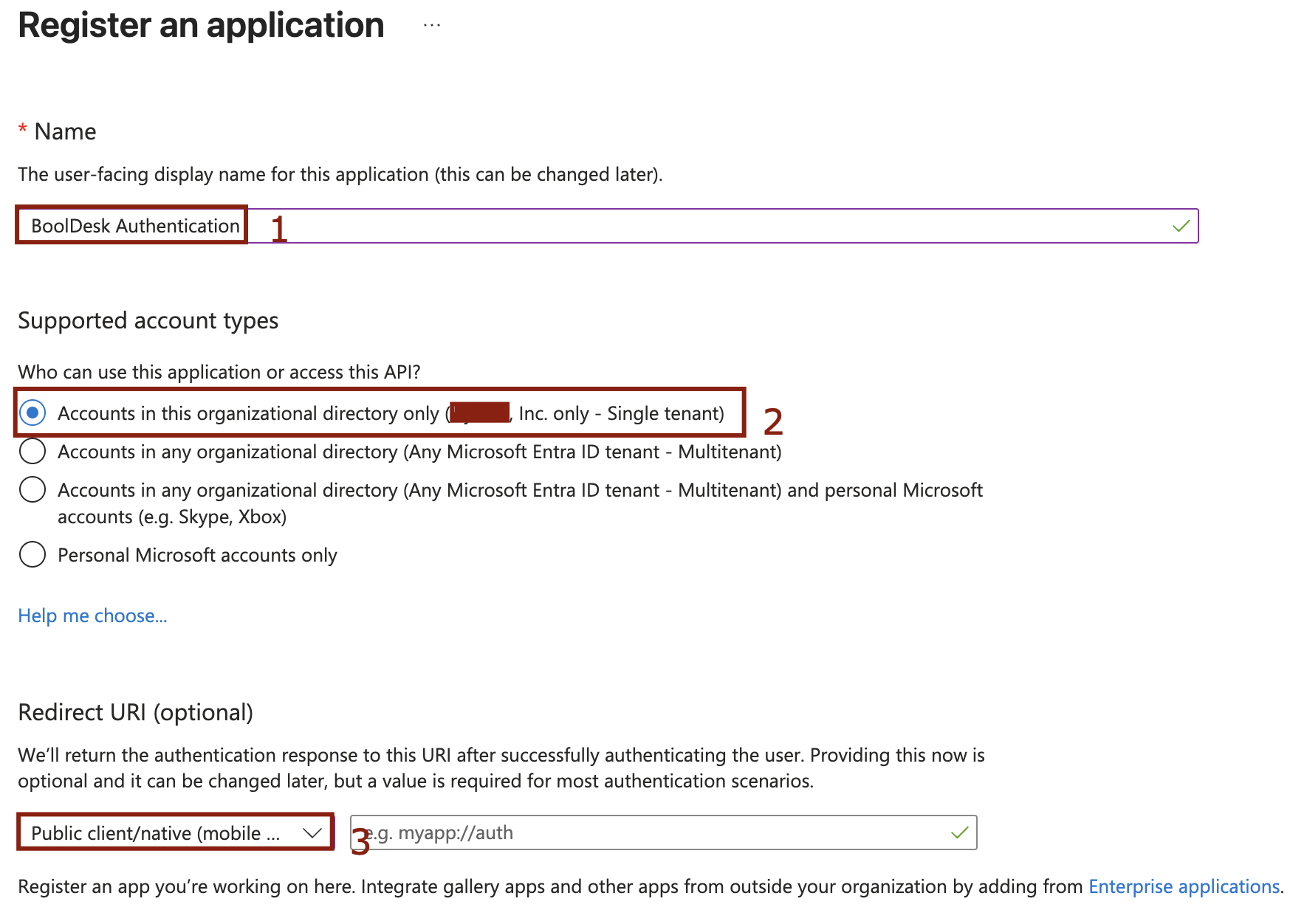
* Name: Enter a clear name for the app, such as `BoolDesk Authentication` (1).
* Supported account types: Select Accounts in this organizational directory only (Single tenant) (2).
* Redirect URI: Select Public client/native (mobile & desktop) (3) from the dropdown menu.
* Click Register to create the app.
**2. Configure Authentication Settings**
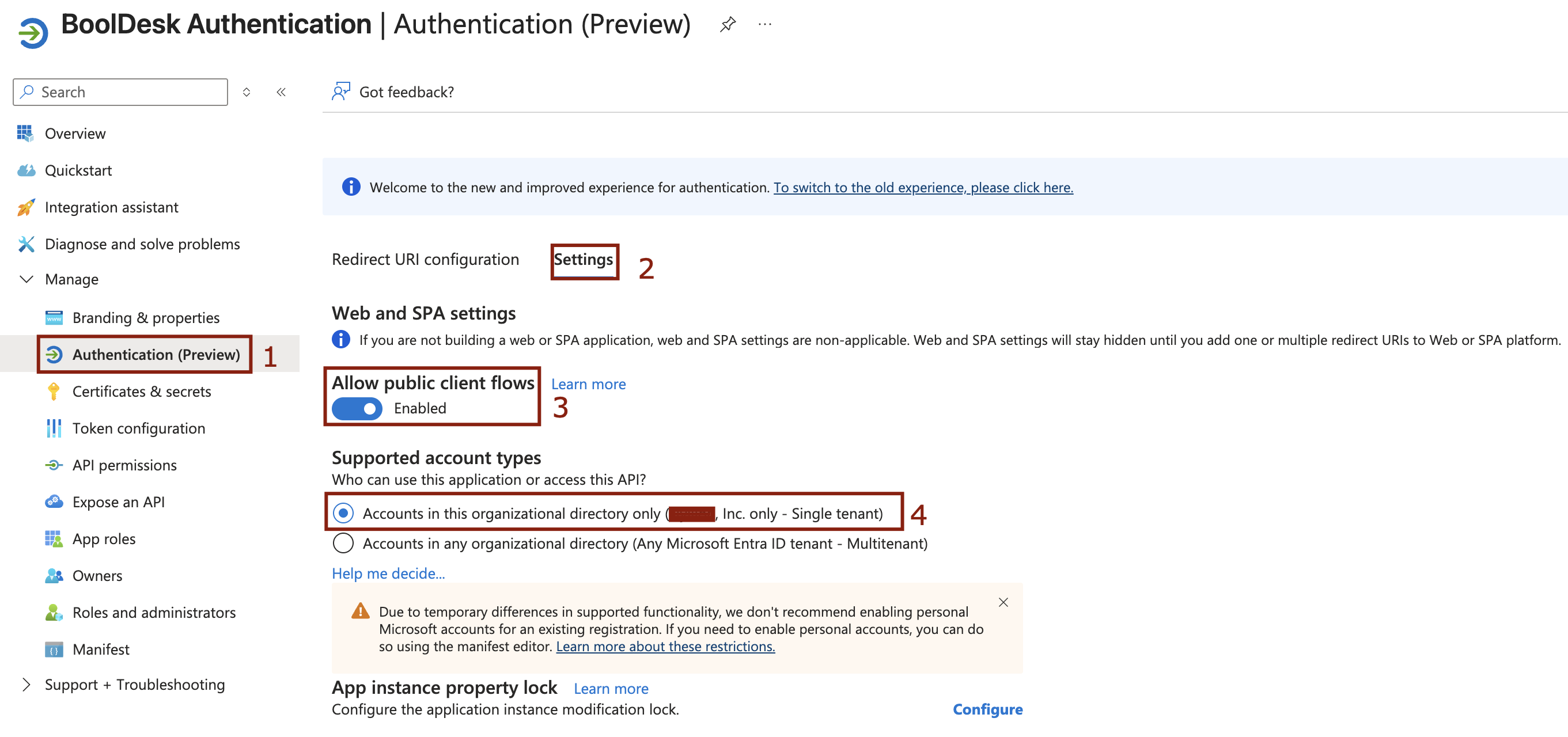
* Once the app is created, go to the Authentication blade (1) in the left menu.
* Scroll down to "Advanced settings" and locate "Allow public client flows".
* Toggle the switch to Yes (Enabled) (3).
* Ensure the account type is confirmed as Single tenant (4).
* Click Save (2).
3\. Configure API Permissions
You must grant BoolDesk permission to access user profiles and send/receive email.
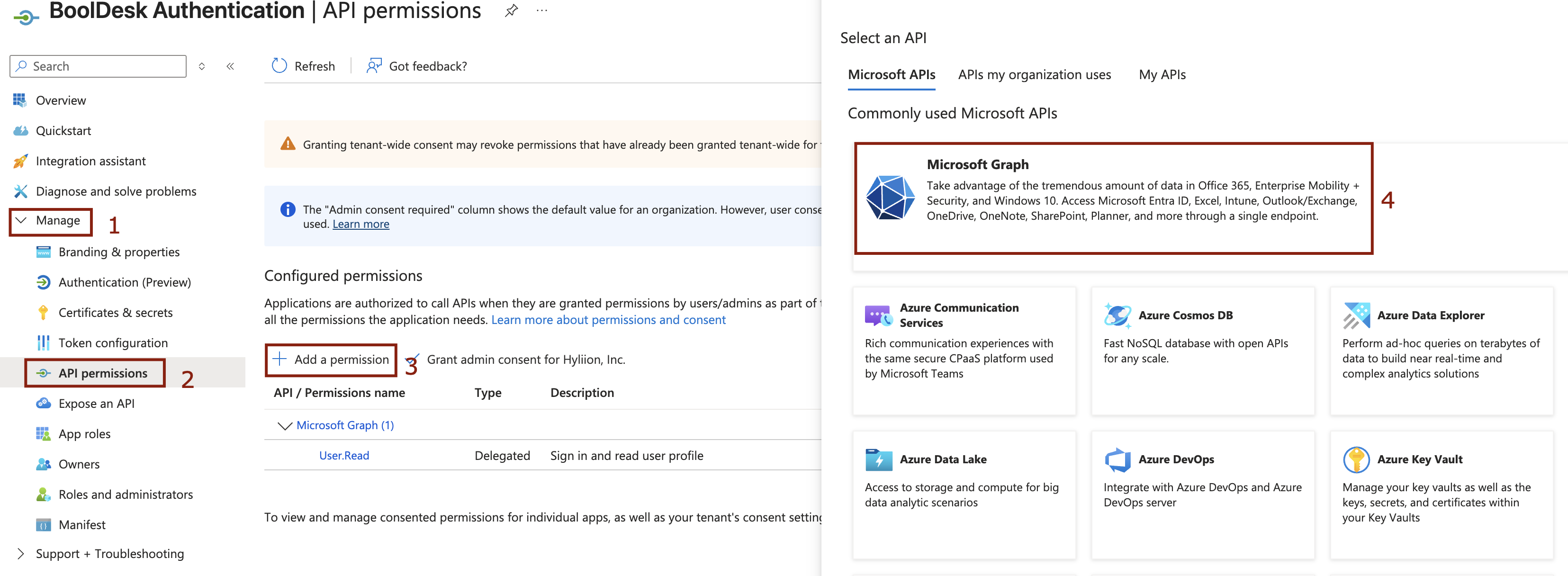
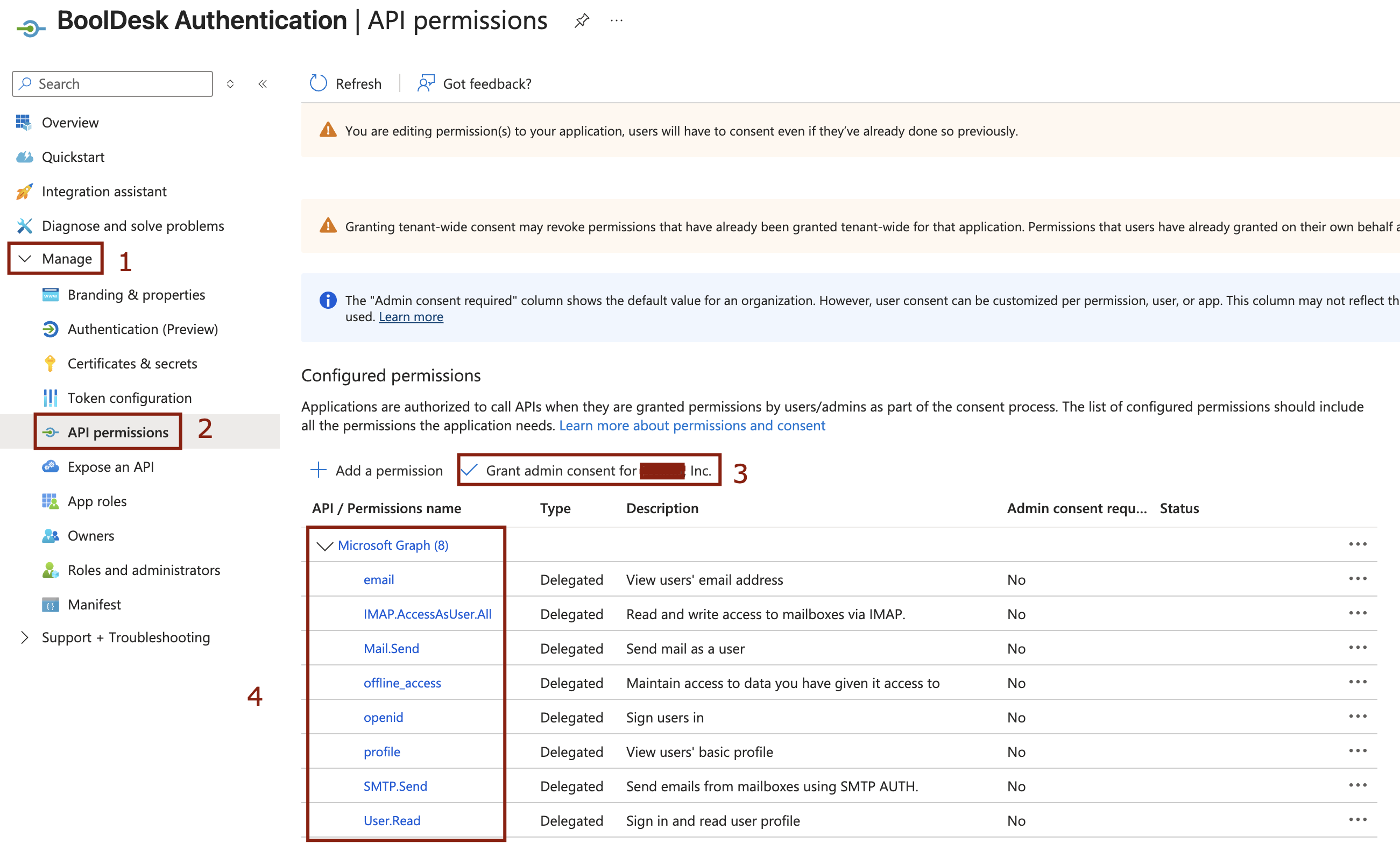
* Navigate to the API permissions blade (2).
* Click + Add a permission (3).
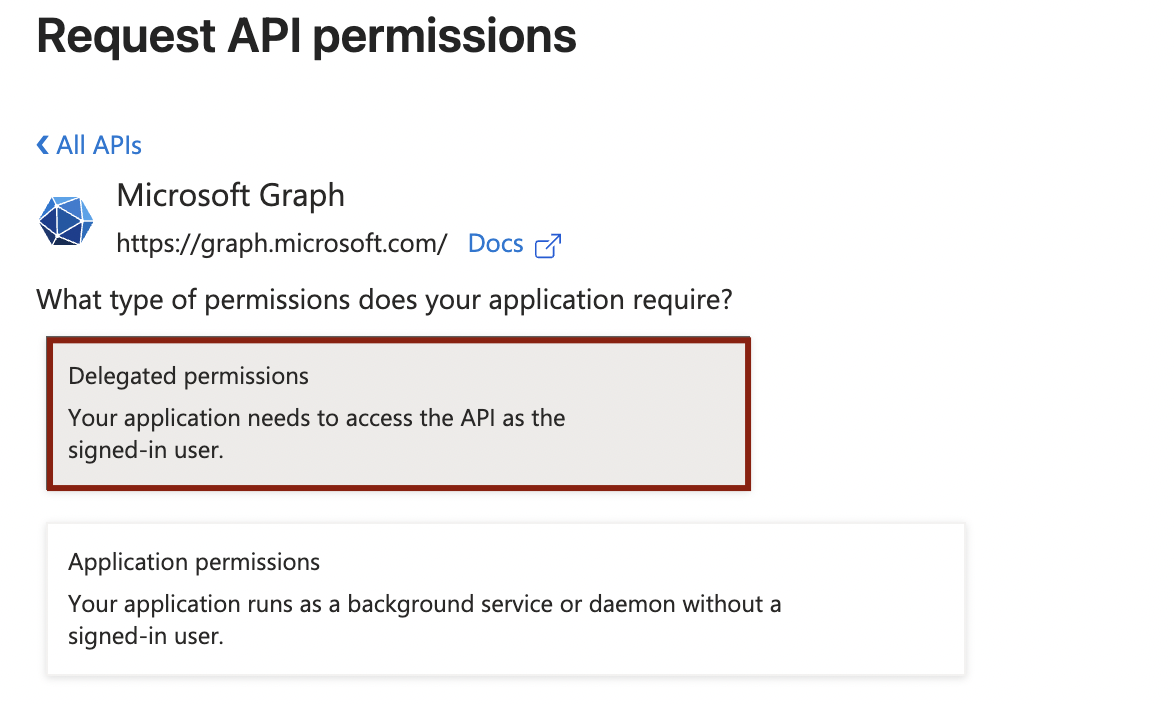
* Select Microsoft Graph (4).
* Choose Delegated permissions.
* Search for and select the following permissions required for full functionality:
* `email`
* `IMAP.AccessAsUser.All`
* `Mail.Send`
* `offline_access`
* `openid`
* `profile`
* `SMTP.Send`
* `User.Read`
Once selected, click the Grant admin consent for \[Organization Name] button (3) to authorize these permissions for your tenant.
**4. Capture Application IDs**
Finally, you need to copy the IDs required to connect BoolDesk to this application.
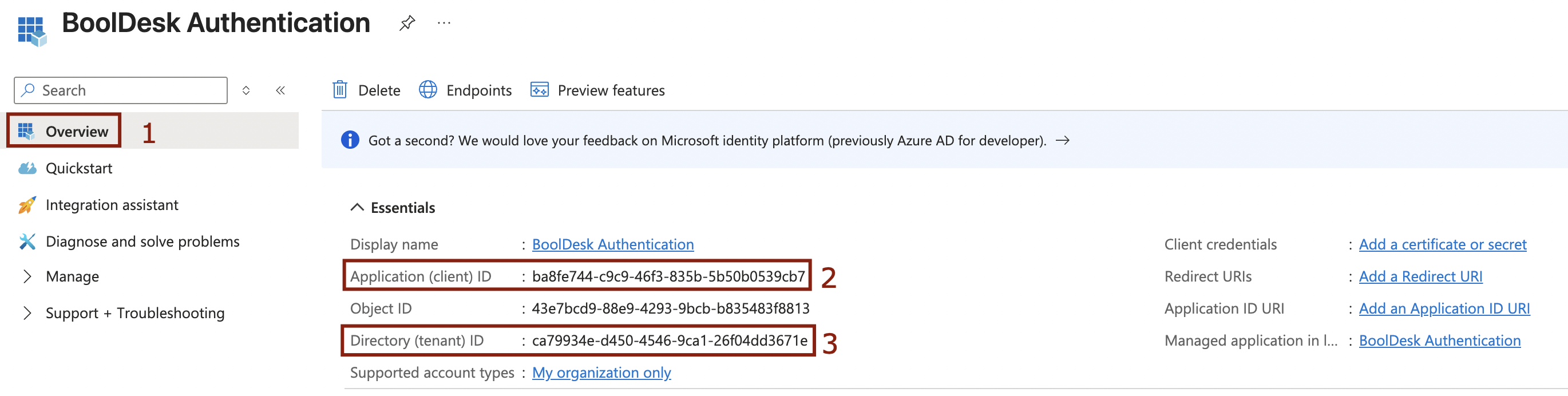
* Go to the Overview blade (1).
* Copy the Application (client) ID (2).
* Copy the Directory (tenant) ID (3).
You will paste these values into your BoolDesk configuration settings to complete the integration.