> For the complete documentation index, see [llms.txt](https://docs.booldesk.com/llms.txt). Markdown versions of documentation pages are available by appending `.md` to page URLs; this page is available as [Markdown](https://docs.booldesk.com/how-to-configure-settings/asset/how-to-create-asset-assignment-forms.md).
# How to Create Asset Assignment Forms
**Overview**
Assignment Forms are used to formalize the handover of assets to employees. You can design custom HTML templates that automatically pull in specific details—such as the employee's name, the device's serial number, and the assignment date. This ensures you have standardized, professional documentation for every asset you issue.
#### **Step-by-Step Guide**
**1. Navigate to Assignment Form Settings**
Access the form builder from the asset settings menu.
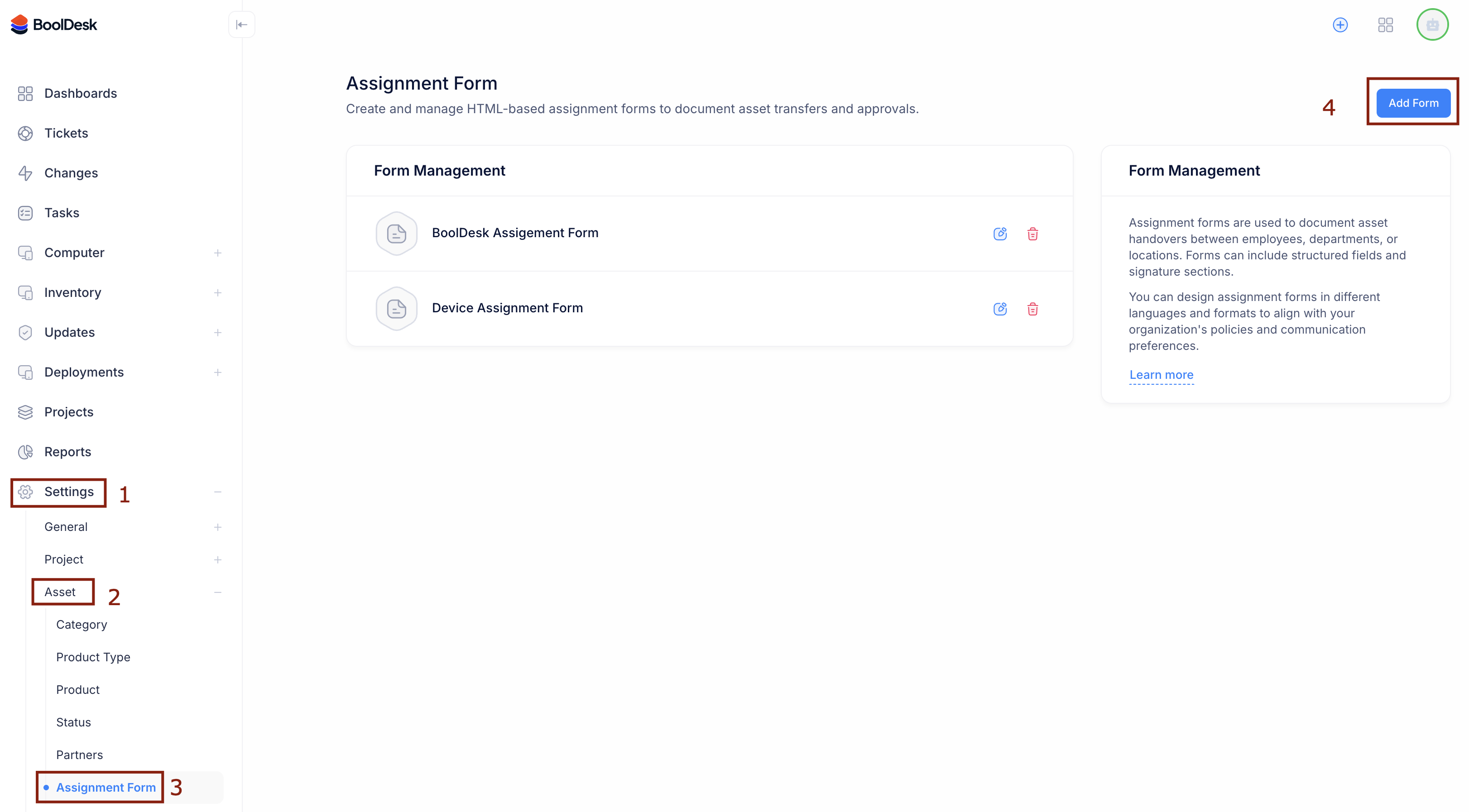
* From the main menu, go to Settings (1).
* Under the `Asset` section (2), click on Assignment Form (3).
* Click the Add Form button (4) in the top right corner.
**2. Design the Form Template**
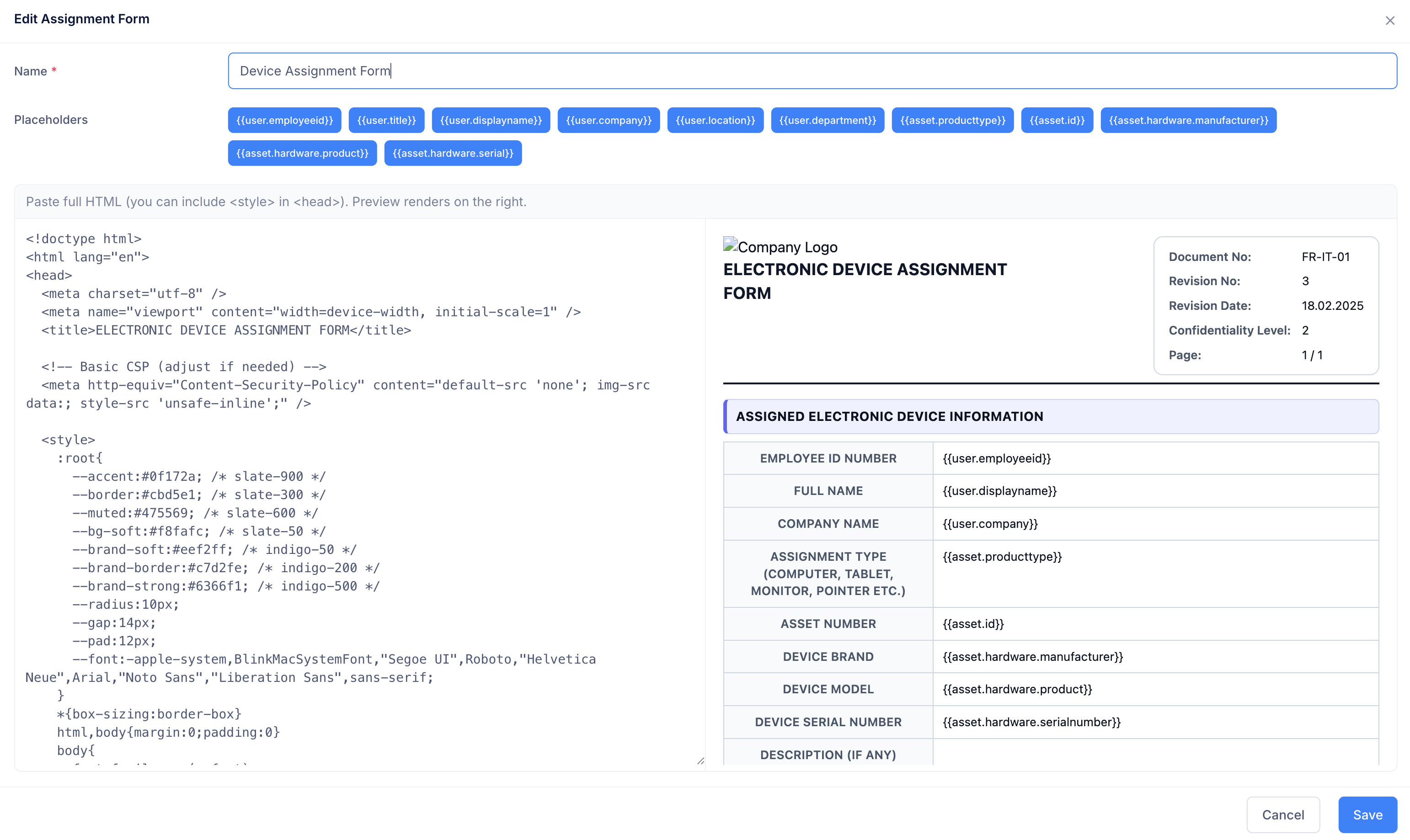
The "Edit Assignment Form" window provides a split-screen editor where you can code your template and see the results in real-time.
* Name: Give your form a descriptive name (e.g., `Device Assignment Form`).
* Placeholders: At the top of the editor, you will see a list of blue chips (e.g., `{{user.displayname}}`, `{{asset.hardware.serial}}`). These are dynamic tags. When you use them in your code, BoolDesk will automatically replace them with the actual data from the system when the form is generated.
* HTML Editor (Left Pane): Paste or write your HTML code here. You can include CSS styles to match your company branding, add tables, and format the text exactly how you want it.
* Live Preview (Right Pane): As you edit the code on the left, the right pane updates immediately to show you exactly how the final document will look.
* Click Save to store the template.