> For the complete documentation index, see [llms.txt](https://docs.booldesk.com/llms.txt). Markdown versions of documentation pages are available by appending `.md` to page URLs; this page is available as [Markdown](https://docs.booldesk.com/how-to-use-modules/help-desk-module/how-to-create-a-ticket-request-a-service.md).
# How to Create a Ticket (Request a Service)
**Overview**
A Service Request is the standard way to ask for pre-approved items or services, such as software licenses, new hardware, or access to a system. Using a service request from the catalog is the fastest way to get what you need, as it ensures your ticket is automatically categorized and routed to the correct team.
This guide will show you the two primary ways to create a service request from the BoolDesk portal.
#### Part 1: Starting Your Request
You can start a new service request using either the main portal page or the quick action button available throughout the site.
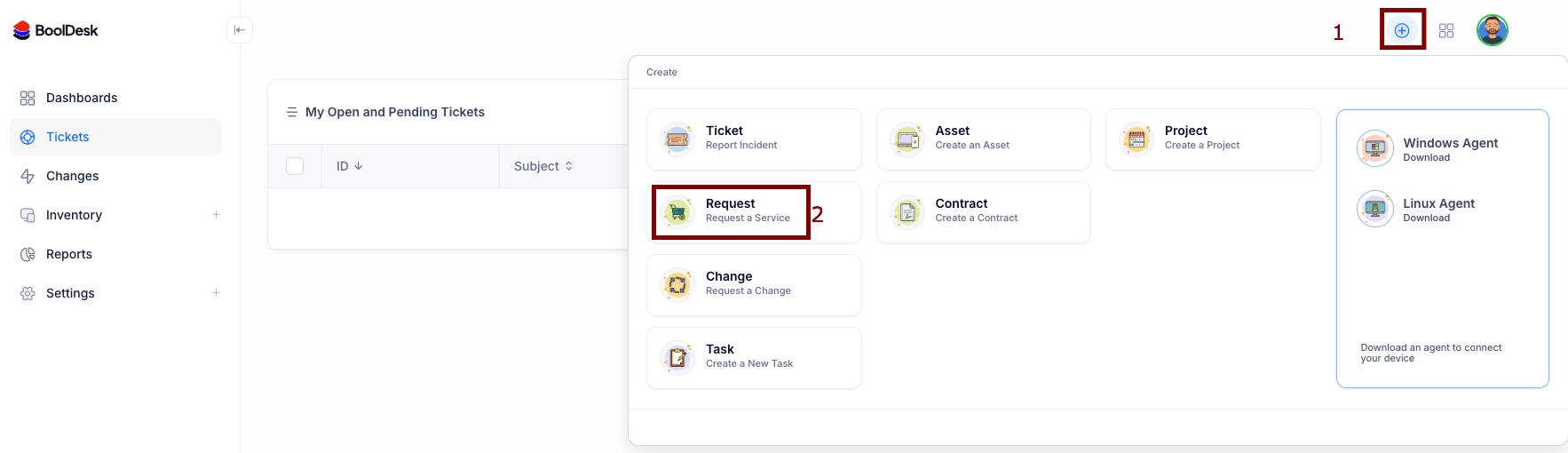
**Method 1: Using the Quick Action Button**
This method is useful when you are already on another page within the portal.
* Click the plus icon (+) (1) located in the top-right header of the portal.
* From the 'Create' menu that opens, choose Request (2) to launch the service catalog.
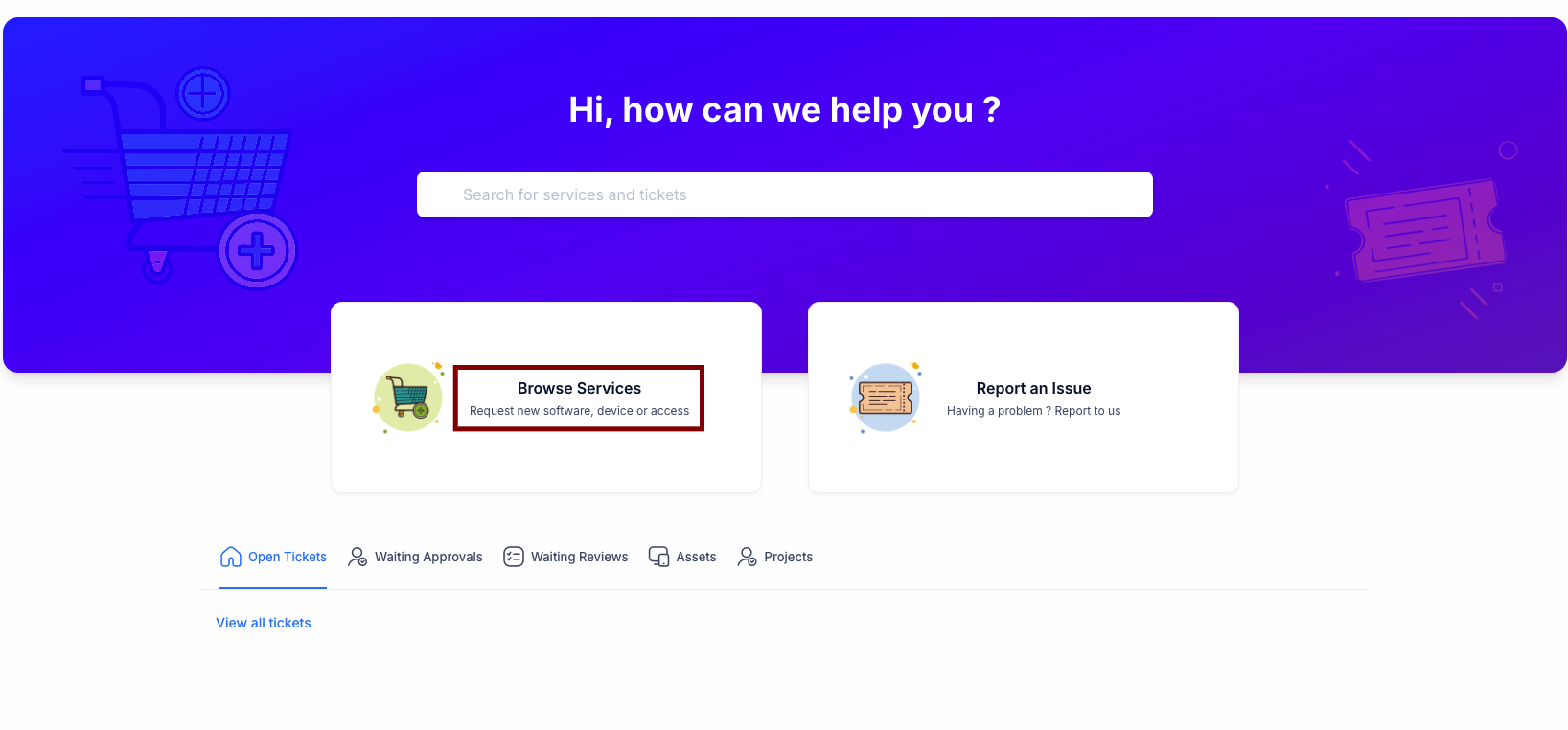
**Method 2: From the Help Portal Homepage**
This is the most direct way to browse all available services.
* On the main portal page (), click the Browse Services button to go directly to the service catalog.
#### **Part 2: Selecting and Submitting Your Request**
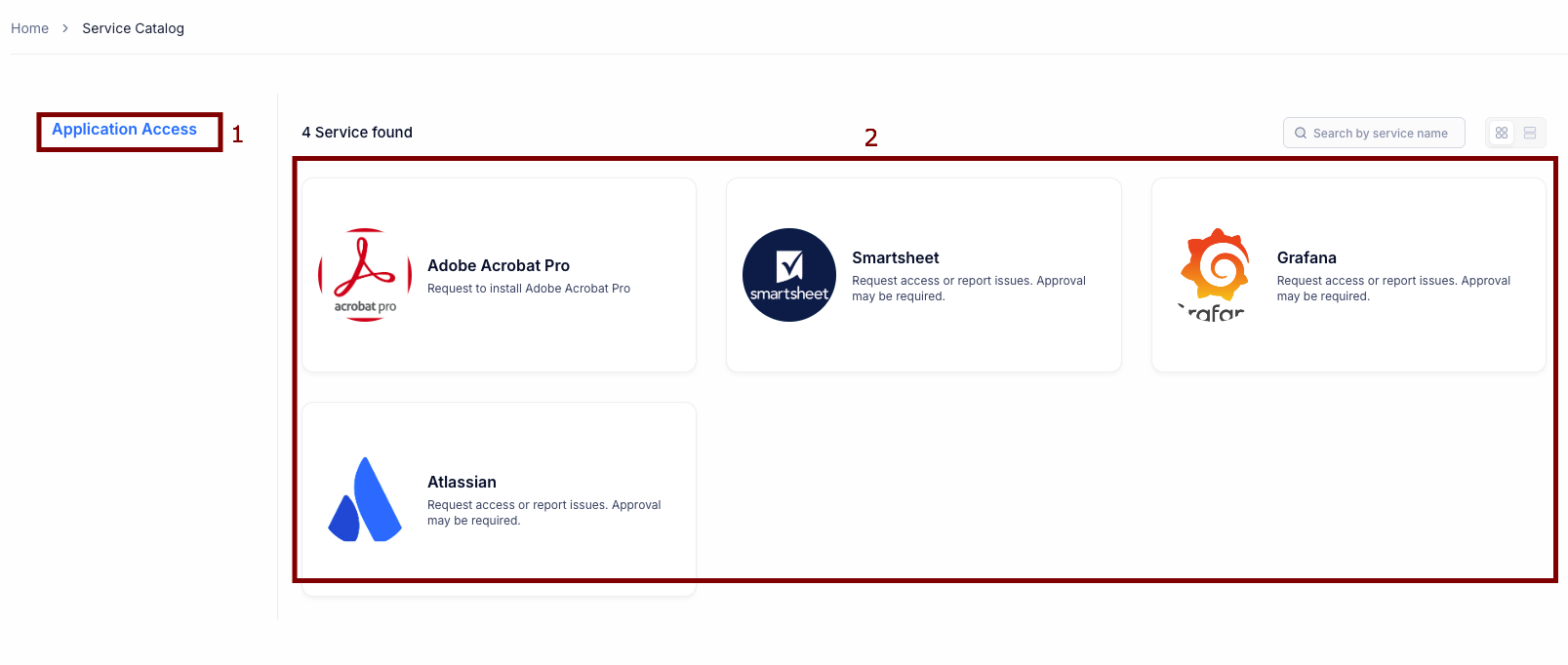
Both methods above will take you to the Service Catalog. From here, the steps to complete your request are the same.
**1. Find the Service You Need**
* Use the categories on the left (1) to filter for what you need, such as "Application Access."
* Click on the specific service you want to request (2). In this example, we'll select Adobe Acrobat Pro.
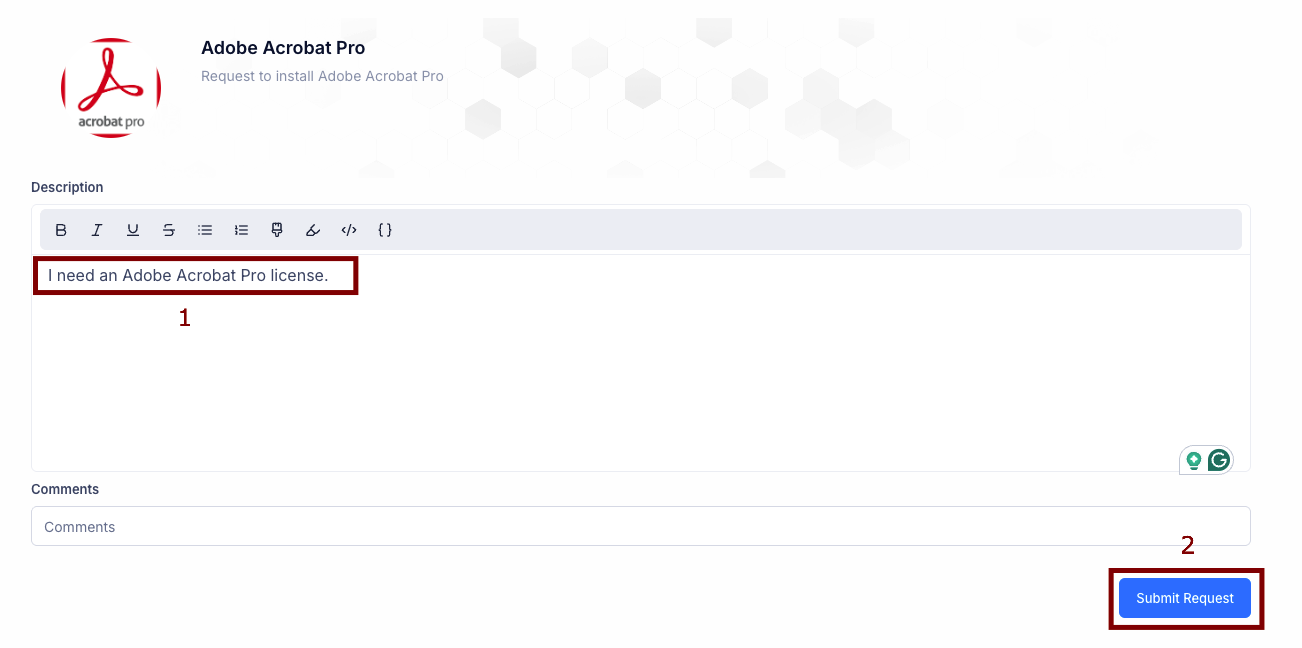
**2. Complete the Request Form**
* On the item's form, fill in the `Description` (1) with any details your IT team might need. For this example, we'll enter, "I need an Adobe Acrobat Pro license."
* Click Submit Request (2) to send your request.
#### **Part 3: Tracking Your Request**
Your request is now submitted! A ticket has been automatically created for you to track.
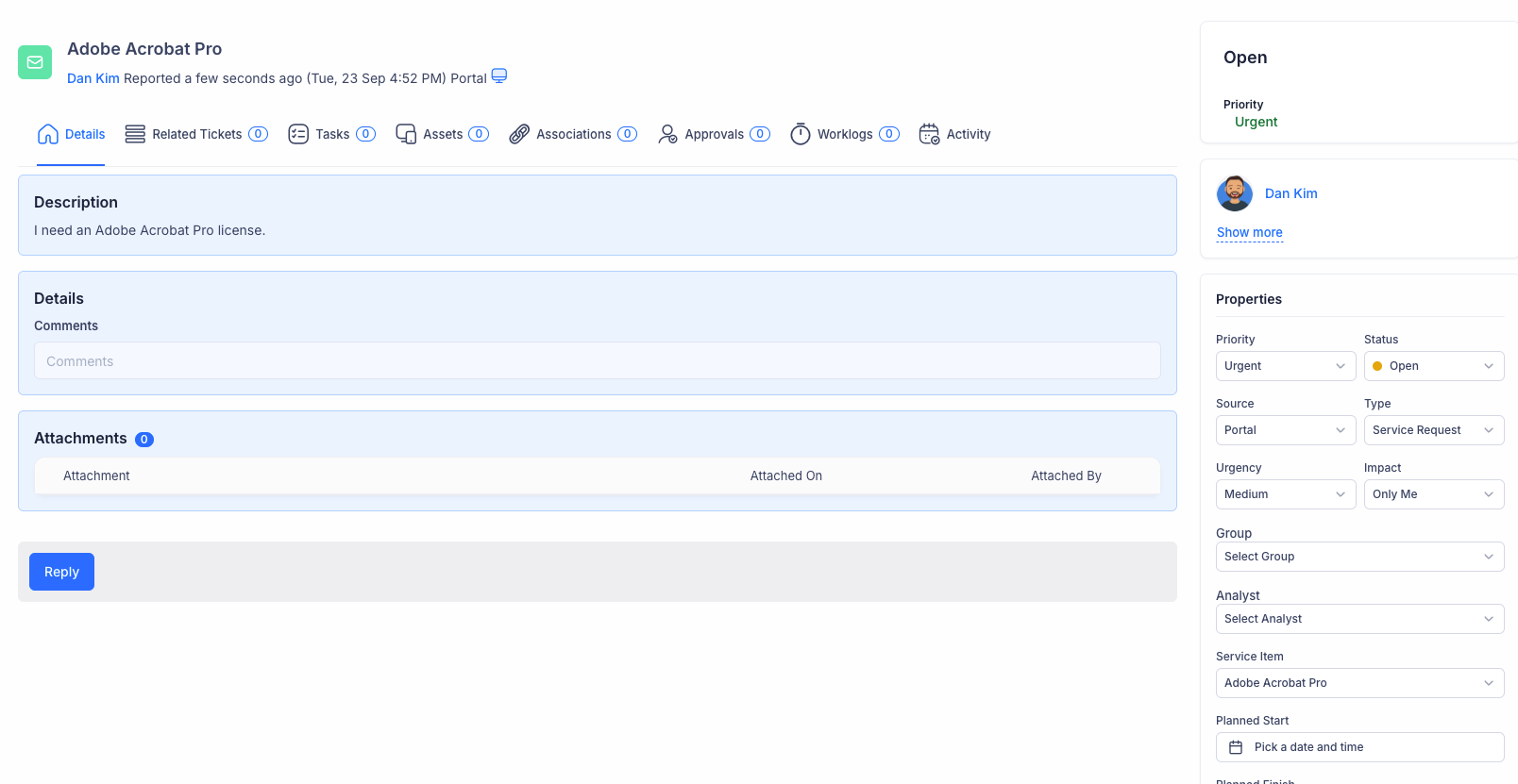
* As you can see from the ticket details (created today, September 23rd), your request is automatically populated with all the correct information, including the specific Service Item. This ensures it gets to the right team for quick fulfillment.
* You can monitor the status of this ticket from your list of open requests in the portal.