> For the complete documentation index, see [llms.txt](https://docs.booldesk.com/llms.txt). Markdown versions of documentation pages are available by appending `.md` to page URLs; this page is available as [Markdown](https://docs.booldesk.com/how-to-use-modules/help-desk-module/how-to-assign-a-ticket-to-the-analyst-analyst-group.md).
# How to assign a ticket to the analyst/analyst group
**Overview**
Properly assigning tickets is a fundamental part of the helpdesk workflow. It ensures accountability and directs the ticket to the right person or team for resolution. In BoolDesk, you can assign a ticket directly to an individual analyst or to a functional group, which can then distribute the work among its members.
This guide will show you how to assign tickets directly from the main list view.
#### **Step-by-Step Guide**
**1. Navigate to the Tickets List**
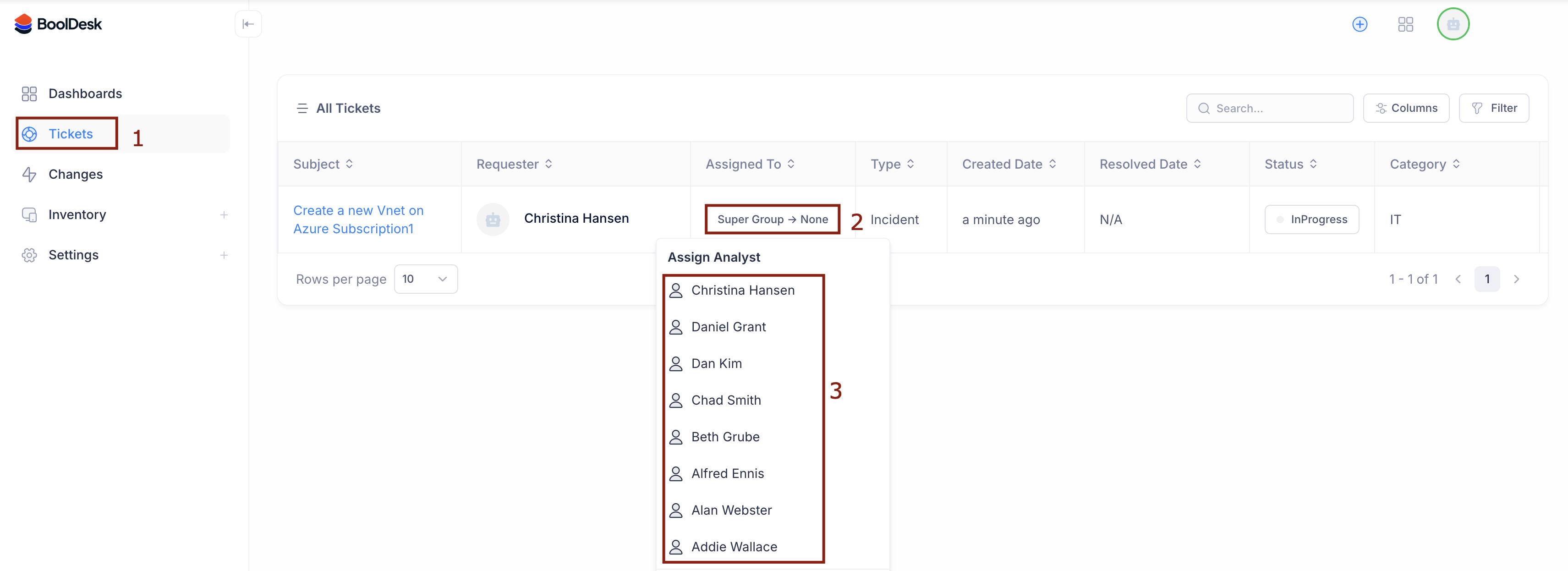
* From the main navigation panel, click on Tickets (1) to view the list of all tickets.
**2. Select a Ticket to Assign**
* Locate the unassigned ticket you wish to manage.
* Click on the Assigned To field (2) for that ticket. A dropdown menu with assignment options will appear.
**3. Choose Your Assignment Method**
You have two primary ways to assign the ticket from this menu:
**Assign Directly to an Individual Analyst**
This method is best when you know exactly who should work on the ticket.
* In the dropdown menu, you will see a list of all available analysts (3).
* Simply click on the name of the person you want to assign the ticket to. The ticket will immediately be assigned to them.
**Assign to a Group or a Specific Group Member**
This method is ideal for assigning tickets to a team, like "IT Support" or "Network Admins," allowing the team to manage the workload.
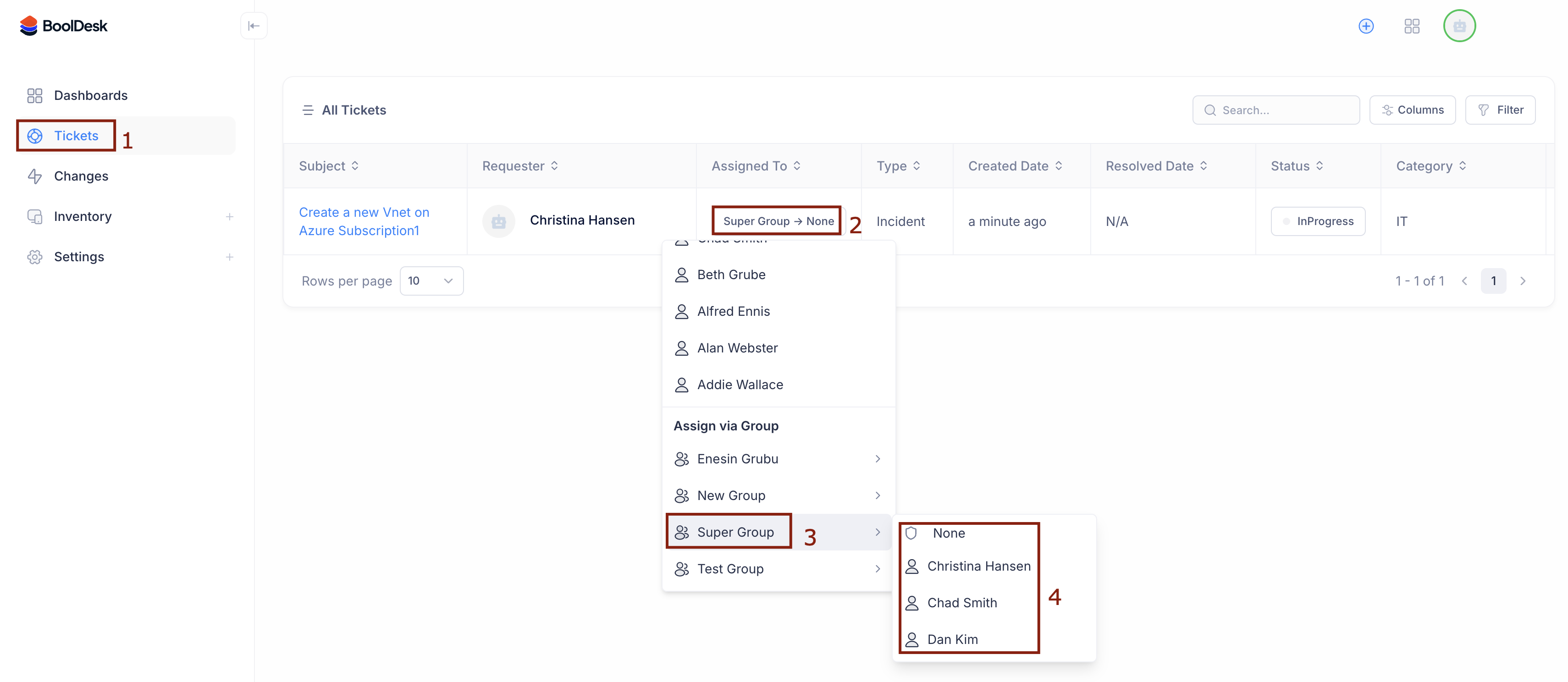
* In the dropdown menu, scroll down to the "Assign via Group" section.
* Hover your mouse over the desired group name, such as Super Group (3).
* A sub-menu will appear, showing all the members of that group (4).
* From here, you have two choices:
* To assign to the group: Click on the group name itself ("Super Group").
* To assign to a person in the group: Click on the name of a specific analyst within that sub-menu.