> For the complete documentation index, see [llms.txt](https://docs.booldesk.com/llms.txt). Markdown versions of documentation pages are available by appending `.md` to page URLs; this page is available as [Markdown](https://docs.booldesk.com/how-to-use-modules/configuration-policies/how-to-set-desktop-wallpaper-and-lock-screen.md).
# How to Set Desktop Wallpaper & Lock Screen
**Overview**
The Display & Lock Screen tool allows administrators to remotely change the visual appearance of managed computers. You can push a specific image file (such as a company logo or policy reminder) to be set as the user's Desktop Wallpaper or Lock Screen background. This ensures a consistent, professional look across all organization devices.
#### **Step-by-Step Guide**
**1. Navigate to Device Actions**
Select the computer(s) you wish to update.
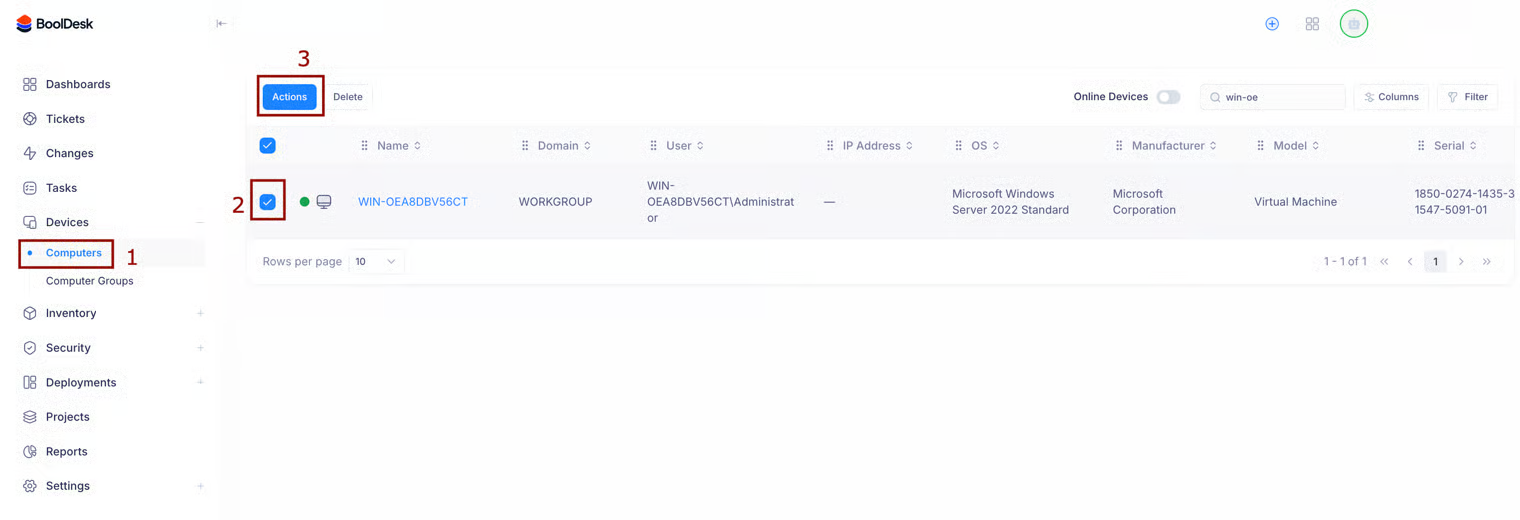
* From the main menu, navigate to Devices > Computers (1).
* Check the box (2) next to the specific computer(s) (e.g., `WIN-OEA8...`).
* Click the Actions button (3) located above the list.
**2. Select the Display Tool**
* In the Actions menu, locate the Device actions section.
* Hover over Display & Lock Screen (2).
* Select either Set Desktop (to change the wallpaper) or Set Lockscreen (to change the login screen) (3).
**3. Configure the Image Policy**
In the "Set Desktop" (or Lockscreen) window, upload the image you want to use.
* Deployment Name: specific a name for this task (e.g., `BoolDesk Background`).
* Targeting: Confirm the correct Target Computers are selected.
* File Source: Select Upload File from the dropdown menu.
* Attach a file: Click to upload your image file (e.g., `booldesk-logo.png`). *Note: Ensure the image resolution is appropriate for the target monitors.*
* Click Submit to apply the change immediately.