> For the complete documentation index, see [llms.txt](https://docs.booldesk.com/llms.txt). Markdown versions of documentation pages are available by appending `.md` to page URLs; this page is available as [Markdown](https://docs.booldesk.com/how-to-configure-settings/help-desk/how-to-customize-the-incident-form-layout.md).
# How to Customize the Incident Form Layout
**Overview**
You can control the layout and arrangement of fields on the "Report an Issue" (Incident) form that your users see. By using the drag-and-drop interface, you can decide which fields appear, their order, and whether they are in a left or right column. This helps you tailor the form to your organization's workflow and ensure the most important information is captured logically.
#### **Step-by-Step Guide**
**1. Navigate to the Custom Form Editor**
To begin customizing the incident form, go to the layout editor in the admin settings.
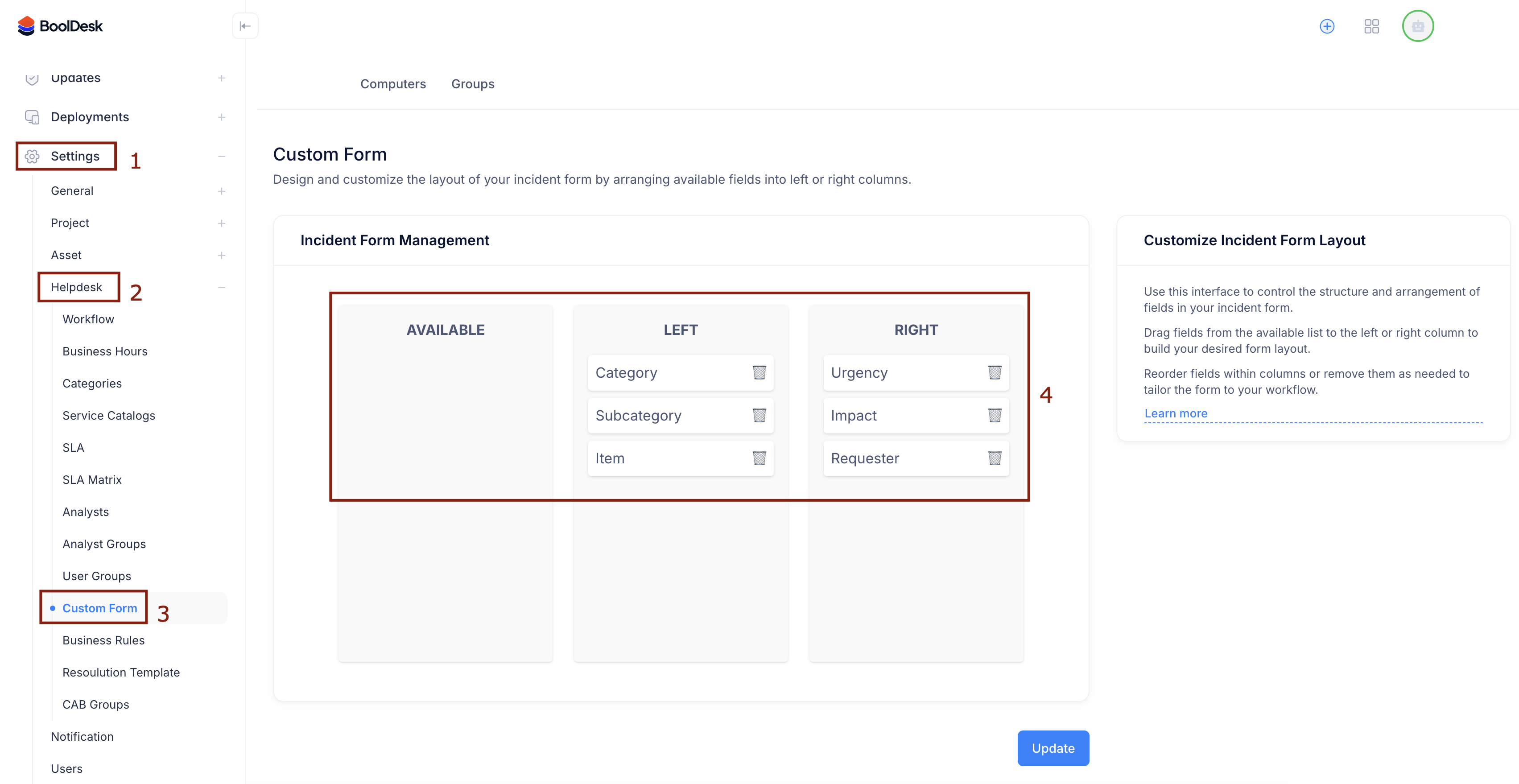
* From the main menu, go to Settings (1).
* Under the `Helpdesk` section, click on Custom Form (2 & 3).
**2. Design Your Form Layout**
The "Incident Form Management" screen (4) provides a simple, three-column layout editor.
* **AVAILABLE:** This column holds all fields that are not currently being used on your form.
* **LEFT:** Fields placed in this column will appear on the left side of the user's "Report an Issue" form.
* **RIGHT:** Fields placed here will appear on the right side, creating a two-column layout.
To build your form, simply drag fields from the AVAILABLE list into the LEFT or RIGHT columns. You can also reorder fields by dragging them up or down within their column.
**3. Update and Review the Result**
* Once you are happy with the arrangement of your fields, click the **Update** button at the bottom of the page to save your changes.
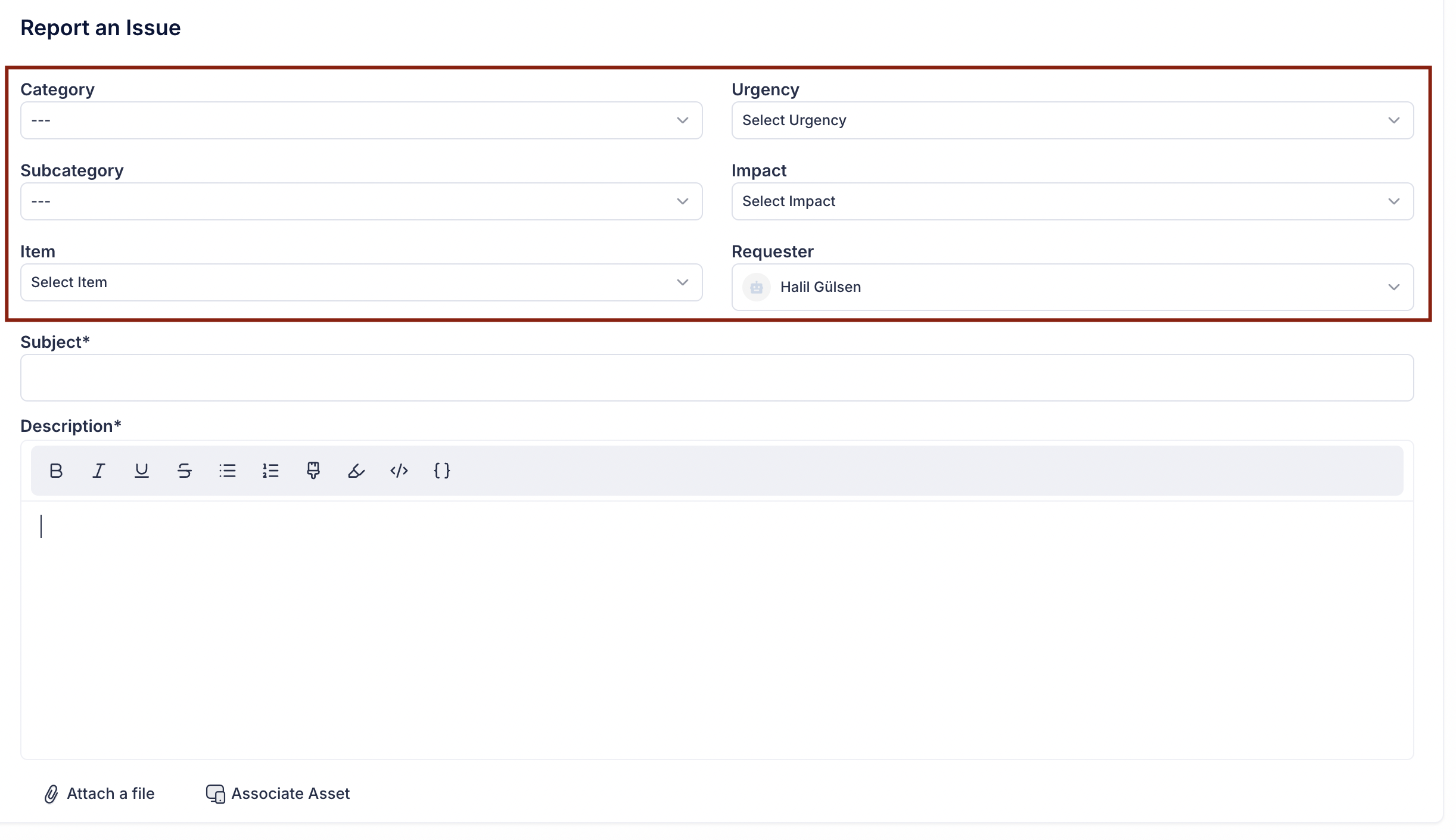
This new layout will be active immediately. The configuration you set in the admin panel will now be seen by all users. The "Left" and "Right" columns you defined (Category, Subcategory, Item on the left; Urgency, Impact, Requester on the right) will create the clean, two-column form shown below.