> For the complete documentation index, see [llms.txt](https://docs.booldesk.com/llms.txt). Markdown versions of documentation pages are available by appending `.md` to page URLs; this page is available as [Markdown](https://docs.booldesk.com/how-to-configure-settings/help-desk/how-to-create-and-configure-a-service-catalog-item.md).
# How to Create and Configure a Service Catalog Item
**Overview**
Service Catalog items are the pre-defined services and products that your users can request, such as software, hardware, or access permissions.
By creating a catalog item, you can standardize the request process. Each item can have its own unique icon, set of permissions, and custom fields (like "Business Justification" or "Manager") to ensure you gather all the required information from the user upfront. This streamlines fulfillment and reduces back-and-forth communication.
#### **Step-by-Step Guide**
**1. Navigate to Service Catalogs**
First, go to the administrative section where you build and manage your service catalog.
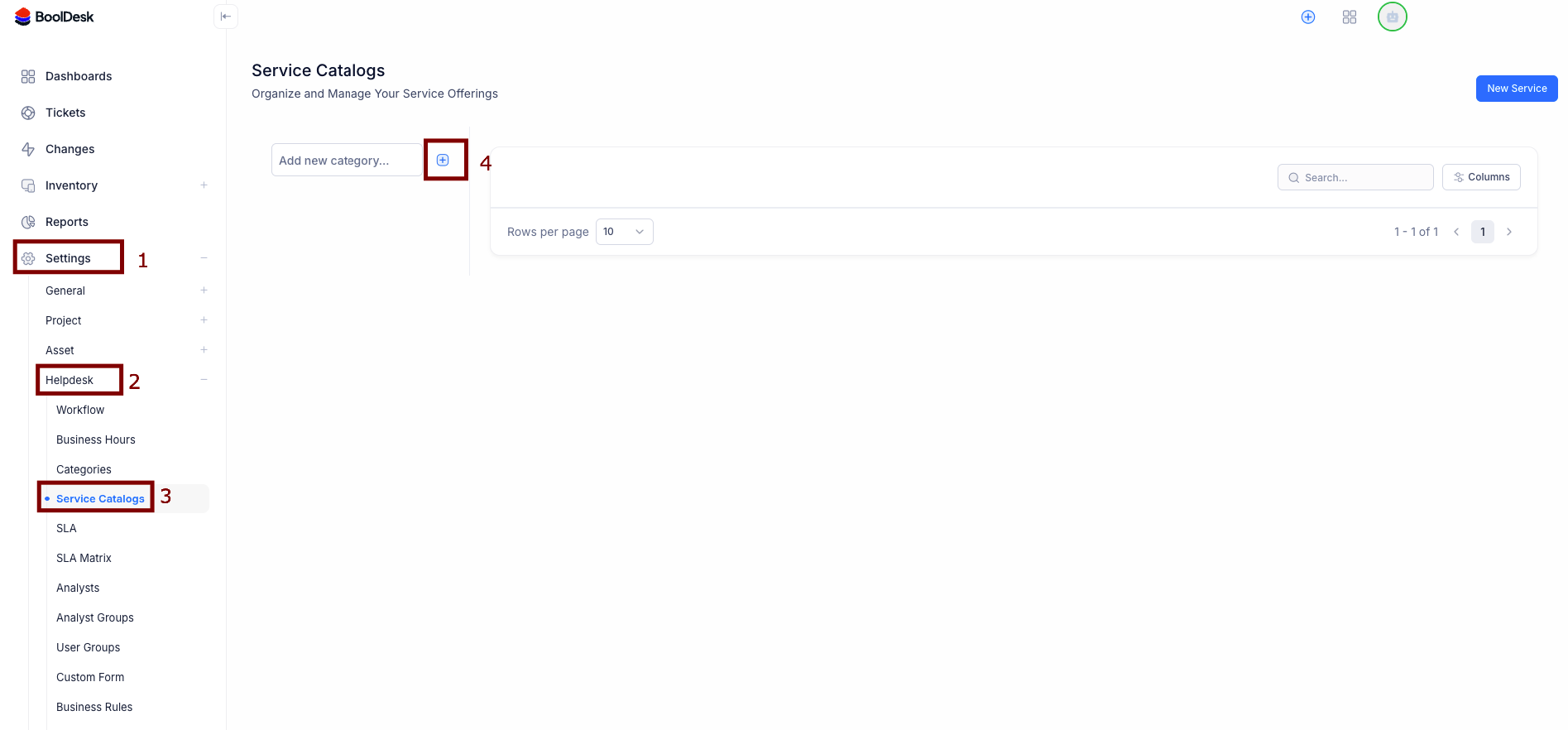
* From the main menu, go to Settings (1).
* Under the `Helpdesk` section, click on Service Catalogs (2 & 3).
**2. Create or Select a Category**
Your service items must be organized into categories (e.g., "Hardware," "Software," "Application Access").
* To create a new one, type a name in the `Add new category...` field and click the plus icon (+) (4).
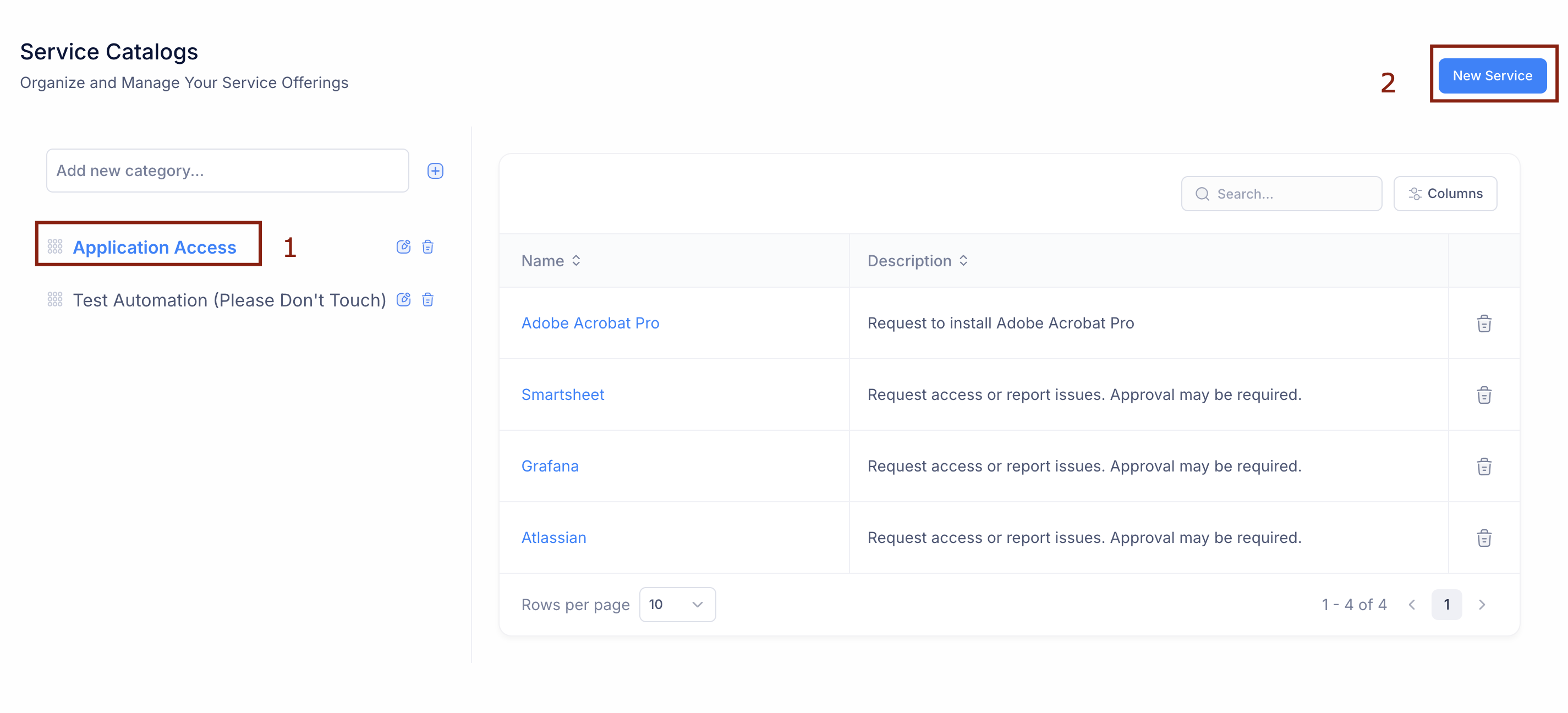
* To add a service to an existing category, simply select that category from the list (1), as shown in the next step.
**3. Add a New Service Item**
* With the correct category selected (1), click the New Service button (2) in the top right corner.
**4. Configure the Service Item**
This form allows you to define everything about your new service item.
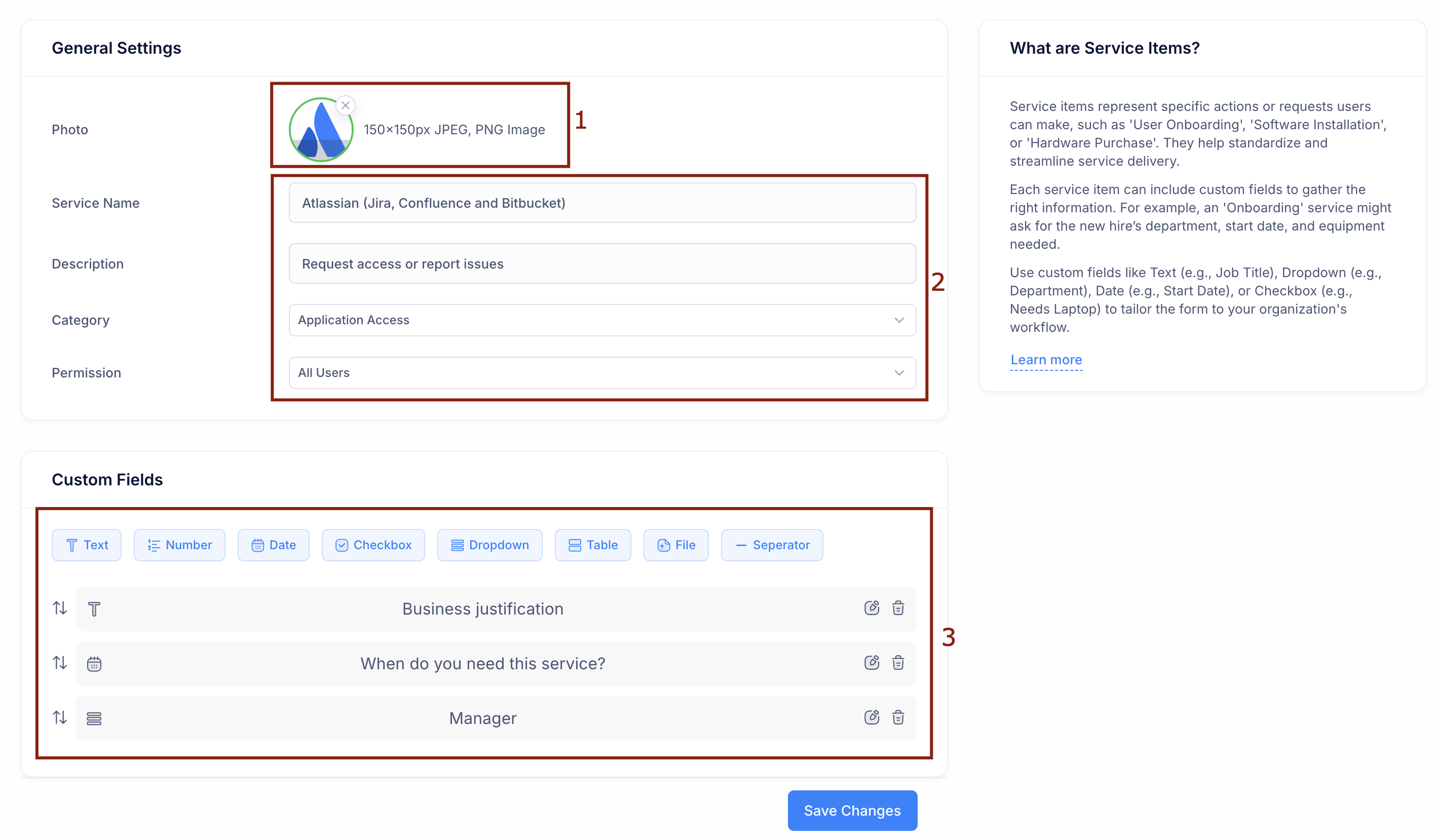
* **(1) Photo:** Upload a custom icon or logo for the service. This helps users quickly identify it in the catalog.
* **(2) General Settings:**
* **Service Name:** The official name of the item (e.g., "Atlassian (Jira, Confluence and Bitbucket)").
* **Description:** A brief explanation of the service for the user.
* **Category:** Confirm the category this item belongs to.
* **Permission:** Set who can see this item (e.g., "All Users" or specific User Groups).
* **(3) Custom Fields:**
* This is where you build the unique form for this request. Drag and drop fields like Text, Number, Date, Dropdown, or File to ask for specific information.
* In the example, fields for "Business justification," "When do you need this service?," and "Manager" have been added.
* **Save Your Work:** Once you have configured all the fields, scroll down and click the Save Changes button.
Your new service item is now complete and will be visible in the Service Catalog for all users who have permission to see it.