> For the complete documentation index, see [llms.txt](https://docs.booldesk.com/llms.txt). Markdown versions of documentation pages are available by appending `.md` to page URLs; this page is available as [Markdown](https://docs.booldesk.com/how-to-configure-settings/help-desk/how-to-add-a-cab-group.md).
# How to add a CAB group
**Overview**
Change Advisory Board (CAB) groups are pre-defined teams of stakeholders who are responsible for reviewing and approving change requests. Creating specific groups for different functions (e.g., IT Operations, Security, Finance) streamlines the approval process. It allows change managers to quickly select the correct review board for any given change, ensuring the right experts are always involved.
#### **Step-by-Step Guide**
**1. Navigate to CAB Groups Management**
First, go to the administrative section where CAB groups are configured.
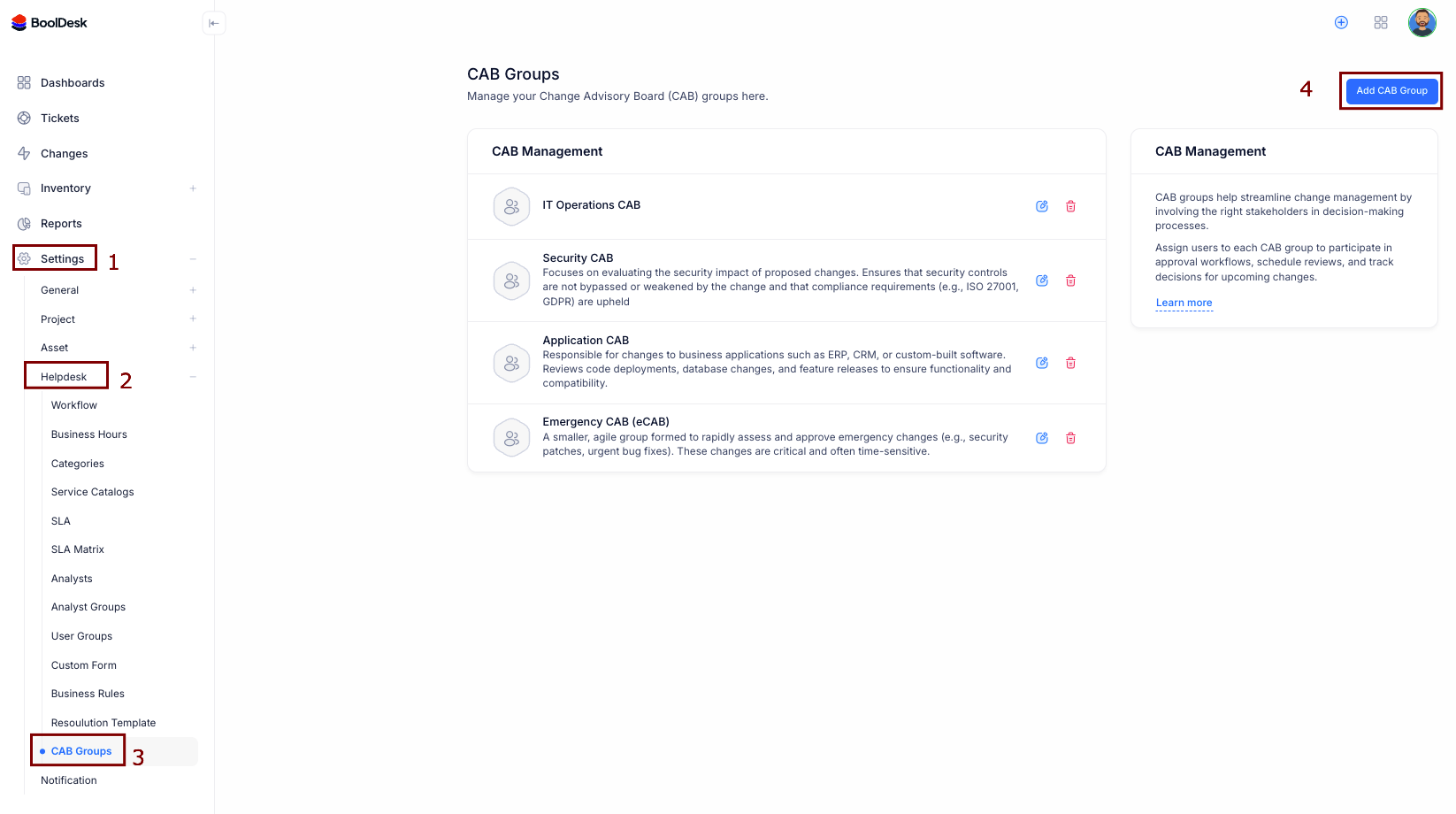
* From the main menu, go to **Settings** **(1)**.
* Under the `Helpdesk` section, click on **CAB Groups (2 & 3)**.
* Click the **Add CAB Group** button **(4)** in the top right corner to open the creation form.
**3. Define the CAB Group**
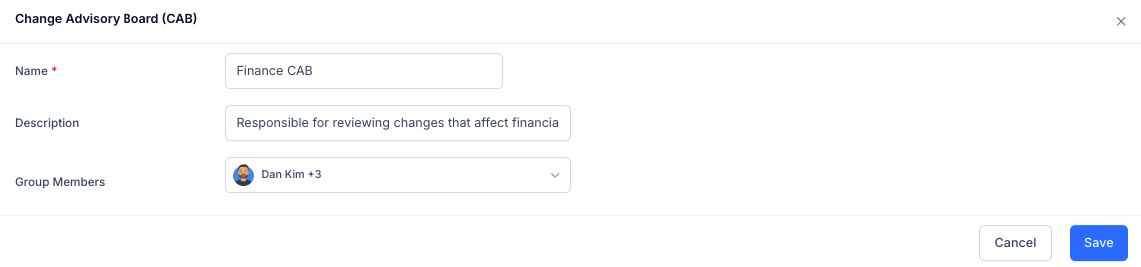
In the window that appears, fill in the details for your new review board.
* **Name:** Give the group a clear, descriptive name that reflects its purpose, such as "Finance CAB."
* **Description:** Briefly explain the group's responsibilities (e.g., "Responsible for reviewing changes that affect financial systems").
* **Group Members:** Use the dropdown menu to search for and add all the individuals who are members of this specific CAB.
* Click **Save** to create the group.
Your new CAB group is now created. It will be available for selection whenever an analyst or change manager uses the "Request Approval" feature on a change request.